Use the Segments rows on a collection to put selected products before or after its normal sort order. Open Merchandising → View collections, choose a collection, and find Segments. Switch on a row, select Settings, then Apply its settings. Save the collection, or select Sort now to apply the result immediately.
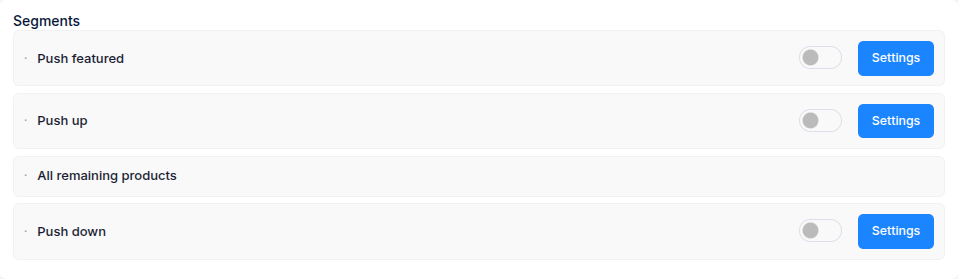
The rows work from top to bottom: Push featured, Push up, All remaining products, then Push down. Each row takes its matching products before the next row is considered. Products that match none of the first two rows follow the collection's chosen sort order in All remaining products.
Push featured
Choose product tags in Settings to feature matching products. You can match exact tags or text within tags. The row normally places them near the top; turn on Push to bottom instead of top to place them at the bottom.
Push up
Set how many days a product counts as new. The rule uses its published date by default; you can choose its created date instead. Turn on Consider restocked products new to include products whose stock has returned, and set a minimum restocked inventory when you use that option.
Push down
Set Inventory < or = and choose whether the rule checks total stock, all variants, any variant, or specific variants identified by SKU text. Other settings let you include featured or locked products, products without an image, and products that continue selling when out of stock or have untracked inventory. You can also exclude products by tag.
Where available, Restocked products go back to where they were returns pushed down products to their saved positions after restocking. This requires a Manual fallback without other ordering segments or product groups. For stock at particular locations, use Advanced inventory options.
Push down changes where products appear in the collection. It does not remove them from the collection.
How this works with Hide Out of Stock Push Down
If Collection Sort & Manage sorts the collection, configure Push down in its Segments section. Hide Out of Stock Push Down uses that segment for the collection instead of showing a separate Push down setting there. Sold-out products can move to the bottom when stock changes; the settings show the available real-time usage.
For a collection that Collection Sort & Manage does not sort, configure Push down through Hide Out of Stock Push Down instead.