Create a sort type to save a product ordering rule for use across collections. This guide starts with Single criterion, which orders products by one metric. For an introduction to all three types, see Custom sorting.
Set up the rule
- Open Merchandising → Sort types and select Create sort type.
- Enter a Name that describes the order, then choose Single criterion under Type.
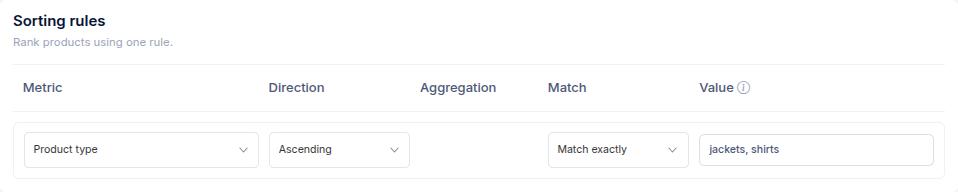
- Under Sorting rules, choose a Metric. The picker groups available product details, prices, inventory, sales data and product metafields. An unavailable metric shows why it cannot be selected.
- Choose Direction. Ascending places lower numbers or earlier alphabetical values first; Descending reverses that order.
- Complete any other fields that appear for the metric. For example, a text metric can offer Match and Value options for placing specified values first. Some metrics offer an Aggregation choice.
- Check the Summary, then select Create sort type.
Your new type appears under Merchandising → Sort types. Open a collection from View collections, choose it under Sort order → Saved sort types, and preview the product order before applying it. See Sort collections by product metafields if the metric you want is a Shopify product metafield.
To sort by several metrics, see Combine sort criteria.