A Background filter offers more conditions than a Live filter, using your store's synced data. Use it when you need fields or combinations unavailable in Live filters. Recent Shopify changes may take time to appear in the Preview.
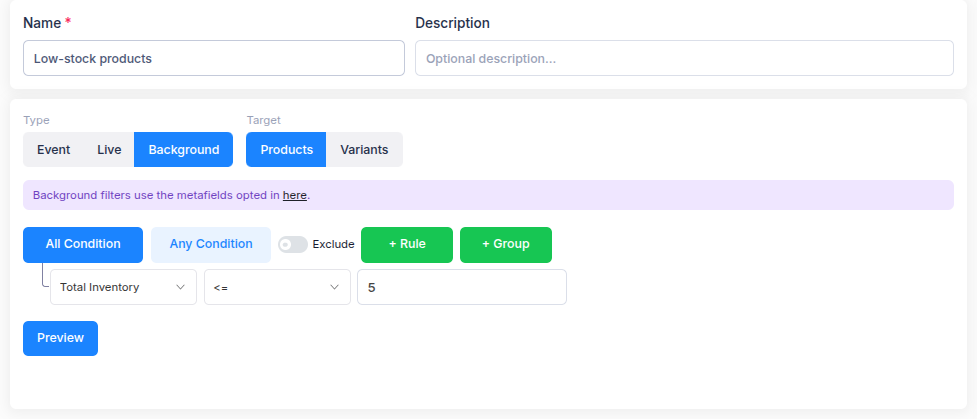
In Library → Filters, select Create filter and choose Background. Enter a name, then choose Products or Variants as the target. The target decides what the filter returns and which fields you can select.
Add conditions
Select a field, an operator and a value for each rule. Open the field picker to see the conditions currently available for your target. These can cover product details, variant values, inventory, sales activity, analytics and metafields. Background filters can use metafields that you have opted in under Integrations → Shopify. See Use product metafields in filters for the setup.
Use All Condition when every rule must match, or Any Condition when one rule is enough. Use + Group to combine both kinds of logic. Turn on Exclude if you want the group to leave out products or variants that meet its rules.
Preview and save
Select Preview and check the matching products or variants. If a recent change is missing, allow the store data to update and preview again. If Background data is still being prepared, the form shows its status; return when it is ready. Review the Summary, then select Save filter.
For the overall flow, see Create a filter. For current Shopify data and a simpler field set, see Create a Live filter.