Use Priority or Weighted score when one metric is not enough to order a collection. Both are types of saved sort type. Start in Merchandising → Sort types → Create sort type, enter a name, then choose one of these types under Type. You can add up to 10 sorting rules.
For each rule, choose a standard metric or an active sort type you previously saved as Single criterion. Saved types appear in the metric picker under Single criterion. Reusing one also carries over its configured direction, aggregation and any value matching; those settings are shown but cannot be changed in the combined rule. Edit the Single criterion type if you need to change them.
Priority: break ties in order
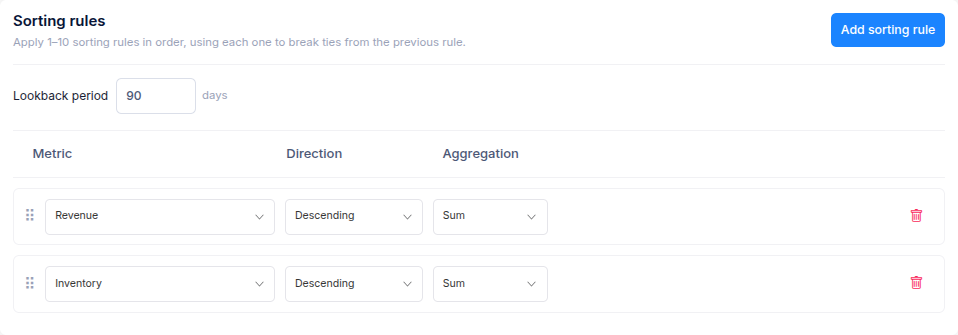
With Priority, the first rule decides the order. The second rule matters only when products tie on the first; each later rule breaks any remaining ties. For example, choose Revenue → Descending first and Inventory → Descending second. Products with different revenue are ordered by revenue. Among products with the same revenue, those with more inventory come first.
Select Add sorting rule for each metric, then choose its Direction and any Aggregation available. Sales metrics also show a shared Lookback period. Drag the rules into priority order before saving.
Weighted score: balance the rules
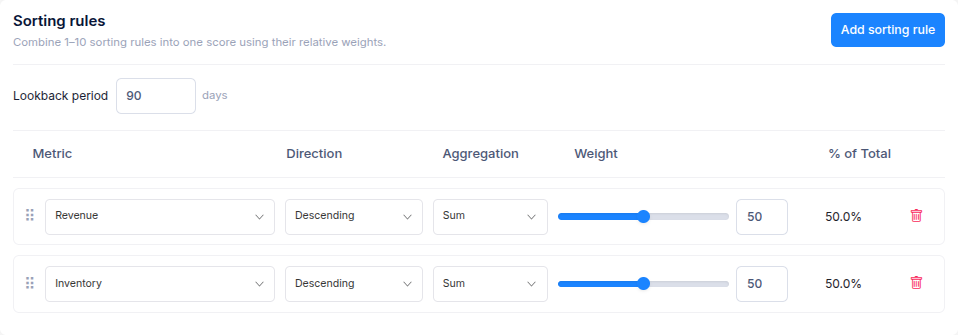
With Weighted score, every rule with a positive weight contributes to the final product order. The app ranks products for each metric and combines those ranks using the relative weights. A rule weighted 70 has more influence than one weighted 30; the weights are relative and do not have to add up to 100. A weight of 0 leaves that rule out of the score.
Choose the metrics, directions and weights, then check % of Total to see each rule's share. For example, equal weights for revenue and inventory give both metrics equal influence. A product can rank well overall even if it does not lead on either metric alone.
Check the Summary, then select Create sort type. Open a collection from View collections, choose the new type under Sort order → Saved sort types, and preview the result before applying it. See Create a sort type for the shared setup steps.