You can move products directly in a collection's Products preview. Use this to set a manual order or adjust positions before saving the collection.
- Open Merchandising → View collections and open the collection.
- In Products, choose Preview. You can switch between Grid View and List View.
- Drag a product to its new position. To drag several together, hold Ctrl while selecting the product cards or rows, then drag the selection. Select Save in the unsaved changes message, or Undo to discard the change.
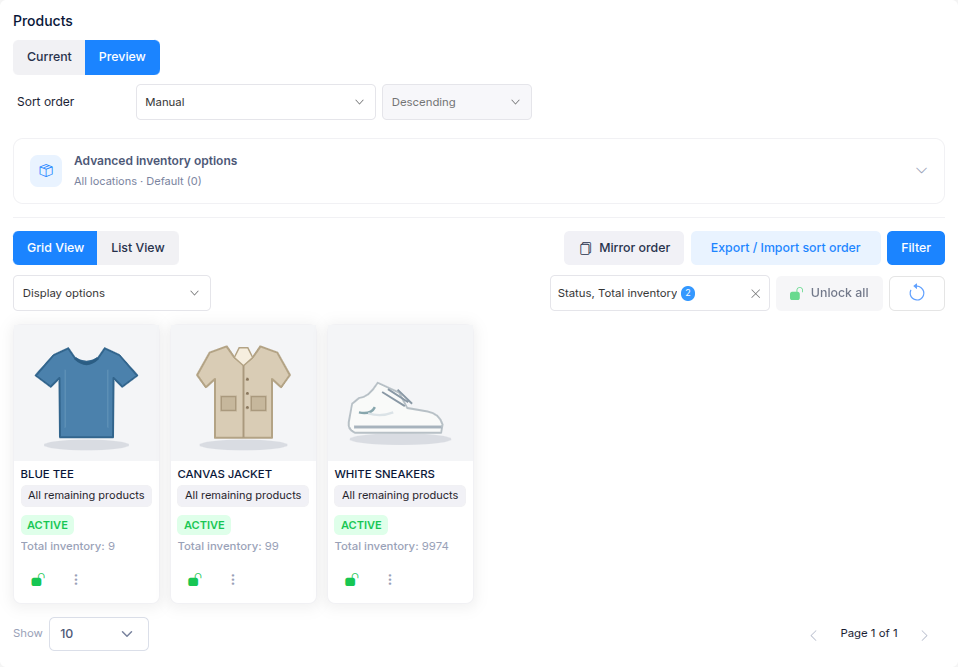
To move products to a specific numbered position, use their checkboxes instead. Select one or more products, enter a number in Move to Position, then select Move. The number is the position where the selection will start. The app saves this move and refreshes the preview. Checkbox selection disables dragging; use Ctrl selection on the cards or rows when you want to drag several products.
Reordering is available after the collection is configured. Clear preview search and filters before dragging or moving products. Save or undo pending changes before changing preview pages.
Keep a position when sorting runs again
With Manual sort order, the saved positions are the collection's order. If you use another sort order, an unlocked product follows that sort when it next runs. A locked product stays at its chosen position while the other products are sorted around it. Use the lock control on a product, or select several products and choose Lock, then Save. Choose Unlock when that product should follow the sort order again.