Use Export / Import sort order in a collection's Products preview to download its product positions, import an edited order, or return to an earlier order. Open Merchandising → View collections, choose a collection, then select Export / Import sort order.
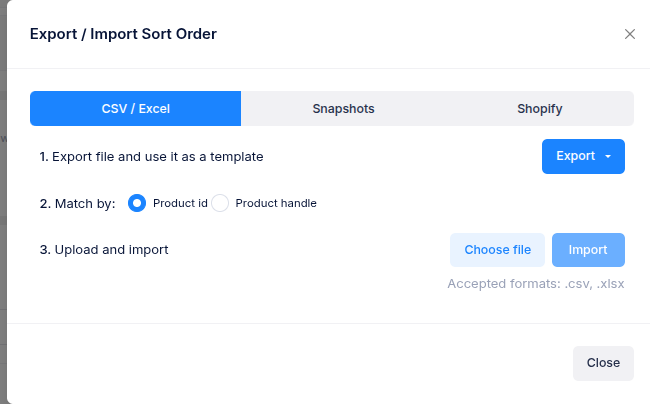
Export a file
On CSV / Excel, select Export and choose CSV or Excel. Choose This page for the visible preview page, or All products for a larger export, up to 25,000 products. The file includes product identifiers, titles and positions, along with other product details. Use an exported file as the template for an import.
Import positions from a file
- Set the collection's Sort order to Manual and save any pending changes.
- Open CSV / Excel and choose whether to Match by Product id or Product handle.
- Edit the position column in your exported file. Keep the
product_idorproduct_handlecolumn that matches your choice. - Select Choose file, pick a
.csvor.xlsxfile, then select Import. - Check the Applied and Skipped counts. Open View skipped rows if any products could not be matched.
The import updates the collection's saved manual positions. Review the preview, then use Sort now when you want to apply that order to the storefront. The import processes up to 25,000 rows.
Save or restore an earlier order
Open Snapshots and select Save current positions to keep a named copy of the current order. You can save up to five manual snapshots. To return to an available snapshot or history entry, select it and choose Revert positions. Restoring positions requires Manual sort order. Review the preview and run the sort when you want the restored order on the storefront.
Import the current Shopify order
Open Shopify and select Import from Shopify to replace the collection's saved manual positions with its current Shopify order. This also removes all locked positions in that collection. The option is available only when the app can read the complete collection from Shopify; the dialog shows the size limit for your store.