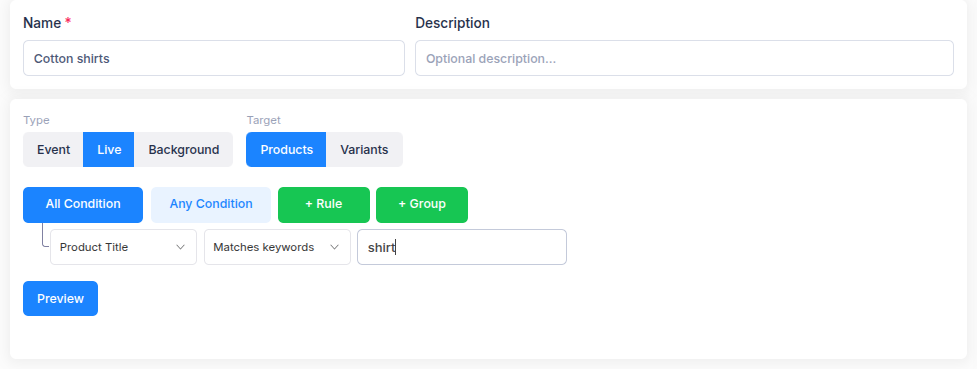
Save conditions as a filter when you want to reuse them in Ouiteo. Open Library → Filters and select Create filter. Give the filter a clear Name and, if useful, a Description.
Choose the filter type
| Type | Use it when… |
|---|---|
| Live | You need to check current Shopify product or variant data. It offers a smaller set of fields and operators. |
| Background | You need a broader set of conditions based on your store's synced data. Recent changes may take time to appear. |
| Event | You want an Instant Hide Out of Stock Push Down rule to act only on stock changes matching your conditions. |
For Live or Background, choose a Products or Variants target, add conditions, and select Preview before saving. For Event, choose a Trigger and add conditions for that incoming change. Event filters do not have a product or variant target or a catalogue Preview.
The Summary shows your choices. Select Save filter when they are ready. The filter type and its target or trigger cannot be changed later; create another filter if you need a different one.
Learn each type
- Create a Live filter for current product or variant data.
- Choose Background filter conditions for the broader synced-data rule set.
- Create an Event filter for an Instant hide sold out rule.
Each app decides how to use the matches. For example, a sales campaign changes matching variants, while a hide sold out rule checks the parent product selected by a variant filter. Read the targeting guide for the feature you are setting up before saving it.