A combination segment brings products from several saved Single segments into one row of a collection. Each Single segment keeps its own product selection, sort order and product limit. The combination decides how to arrange their products and how many products to bring in overall.
Before you start
Create the Single segments you want to combine. A combination can contain Single segments, but not another combination. If the same product matches more than one member, it belongs to the first matching member in the order shown.
Create the combination
- Open Merchandising → Segments → Create segment and enter a Name.
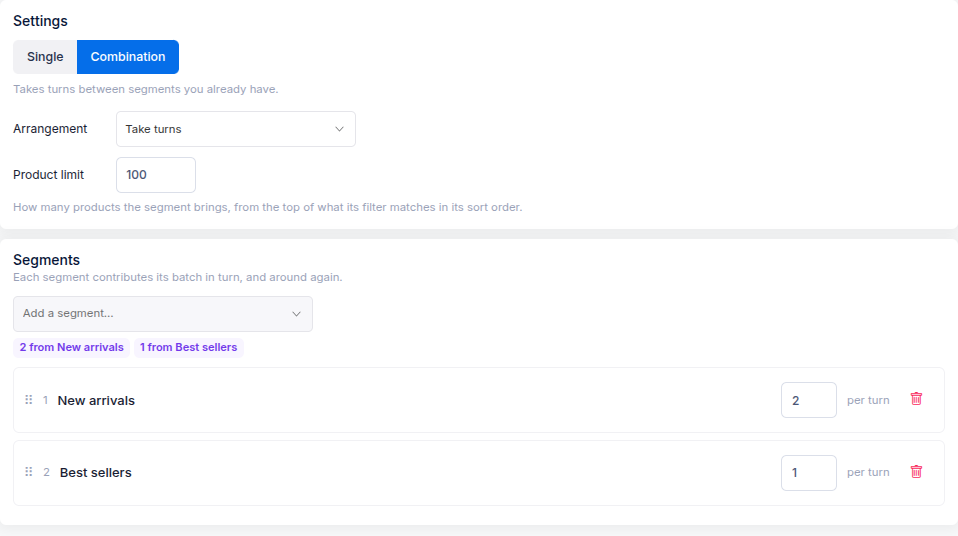
- Under Settings, choose Combination.
- Choose an Arrangement: Take turns draws a batch from each segment in turn; One after another places all products from the first segment before the next. See Choose how combination segments take turns for examples.
- Set a Product limit for the combination. This caps the total number of products it brings into the collection. Each member's own product limit still applies.
- Under Segments, add your saved Single segments. Drag the rows to set their order. For Take turns, enter how many products each segment contributes per turn.
- Check the product preview and Summary, then select Create.
The preview shows which member brings each product. If a member has fewer products than its batch size, the other members continue contributing until they run out or the combination reaches its product limit.
Use it in a collection
Open Merchandising → View collections and choose a collection. In Segments, select Add a segment, choose the saved combination and position its row. Preview the collection order, then save or select Sort now to apply it. Products outside the combination continue through later segment rows or All remaining products.