An Event filter checks an incoming change before an Instant hide sold out rule acts on it. Use one when you want that rule to react to selected stock changes rather than every product. Event filters are available with Hide Out of Stock Push Down.
- Open Library → Filters and select Create filter.
- Enter a Name and choose Event under Type.
- Choose a Trigger, such as Inventory quantity changes. The fields offered below depend on the trigger.
- Add conditions for the incoming change. Use All Condition when every rule must match, or Any Condition when one match is enough. Use + Group for combined logic.
- Review the Summary and select Save filter.
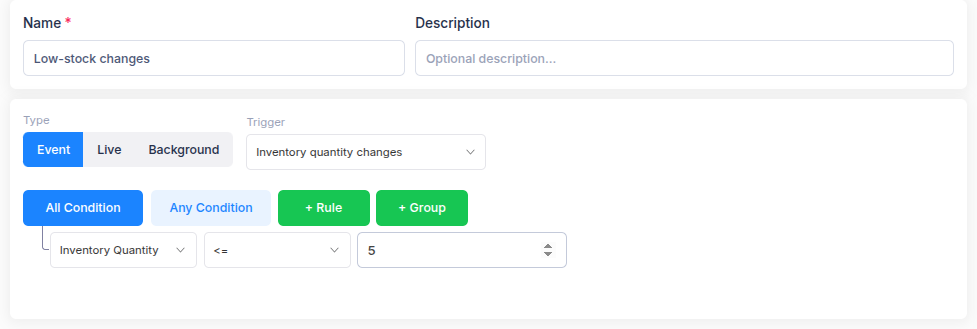
An Event filter has a trigger instead of a Products or Variants target. It does not have a catalogue Preview: its conditions are checked when the trigger occurs. The filter type and trigger cannot be changed after creation.
To use it, create or edit an Instant hide sold out rule and select the saved filter under Targeting → Event filter. The rule's Hide and Unhide conditions still decide whether the selected product changes visibility.