Use the strategy list to find a saved strategy, change its settings or make a copy. Open Merchandising → Collection strategies when Ultimate Collection Manager is installed, or Merchandising → Sorting strategies in a Collection Sort & Manage-only store.
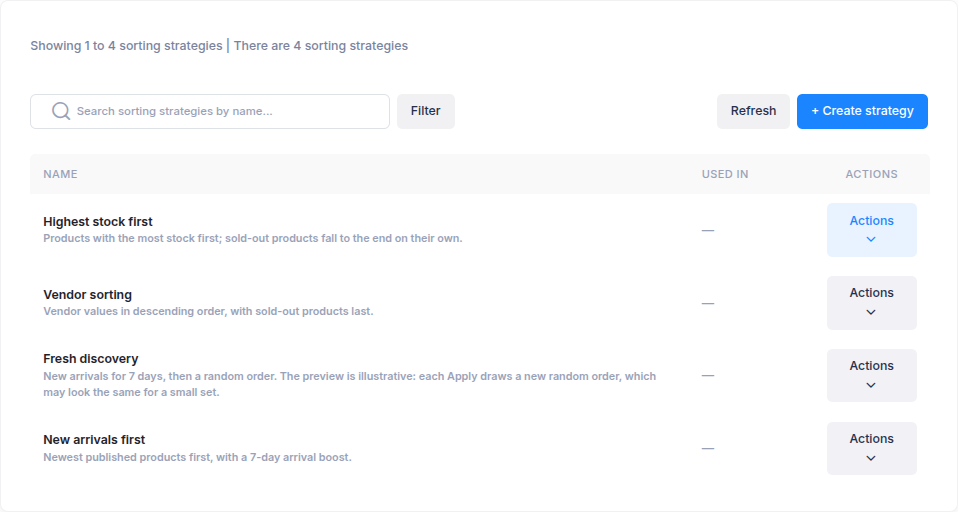
The list shows each strategy's sort order, segment and product group counts, and Used in count. Search by name or use Filter to find strategies needing attention. Select a strategy's name to edit it, or open its Actions menu.
Edit a strategy
Open the strategy and review the collections under Used by in its Summary. Change the settings, then select Update strategy. When collections use the strategy, a confirmation shows how many will be affected. Collections with sorting on pick up the changes on their next run; other linked collections use the changes when sorting is turned on.
To change only one collection, open that collection and choose Customize this collection instead. See Assign a strategy to collections for how collections follow a shared strategy.
Duplicate or set a default
- Select Actions → Duplicate, give the copy a name and select Duplicate. The copy opens for editing with the original settings; it is not assigned to the original's collections.
- Select Actions → Set as default to use a strategy as the default for unconfigured collections. Only one strategy can be the default at a time. Use Clear default if you no longer want one selected.
Delete a strategy
Select Actions → Delete. You must first clear its default status and move every linked collection to another strategy or Custom. The deletion removes the strategy's own sort order and built-in rows; saved segments and product groups it used remain available.