Market-specific collections let one collection show a different product order in each of your Shopify Markets. Shoppers stay on the same collection URL, and each market sees the order you set for it: for example, winter coats first in Canada and swimwear first in Australia.
For each market you choose, the app creates a market version of the collection. A market version has the same products as the original and its own sorting settings. On the storefront, the shopper's market decides which order they see.
What you need
- Collection Sort & Manage on the PLATINUM or TITANIUM plan. Each plan's market-version limit is shown in Account → Billing and under How limits work in Markets. Market versions are not included during a free trial.
- Ultimate Collection Manager, on any plan with a free auto-update slot. Each original collection you add to Markets uses one auto-update slot, however many market versions it has.
- At least one active market besides your primary market, set up in Shopify under Settings → Markets.
- Original collections with at least one product and no more than 20,000 products.
If you only have Collection Sort & Manage, open Merchandising → Collections and select Markets. Then select Choose a plan to install Ultimate Collection Manager. Any multi-app discount your store is eligible for is shown there; see Save 30% with multiple Ouiteo apps.
Allow access
Ultimate Collection Manager needs permission to read your markets, publish market versions to your Online Store and read your theme. If any of these permissions is missing, Markets shows a banner. Select Allow markets and publishing access and approve the request in Shopify.
Add collections
- Open Merchandising → Collections and select Markets.
- Select Add collections.
- Choose the collections you want, then choose the markets.
- Select Save.
The market versions are created in the background. They show Queued until they're ready, and the table refreshes on its own. A new market version starts with the original's sorting schedule and a manual product order.
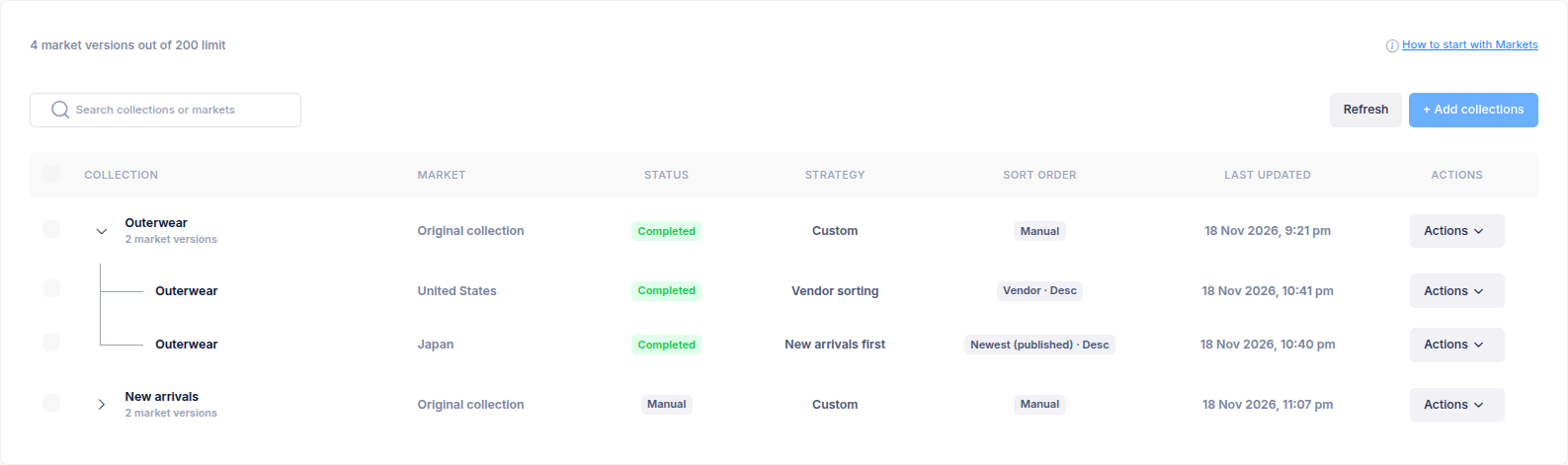
To add or remove markets later, select a collection, or several, and choose Manage markets. Adding markets keeps the existing versions. Removing a market deletes that version and its sorting settings after you confirm.
Set each market's order
Each market version is sorted like any other collection:
- Assign a strategy: select market rows in the Markets table, then choose Assign strategy. Selecting the same strategy for several markets is quick; different strategies give each market its own order. See Assign a strategy to collections.
- Edit settings directly: open a market version from the table, or from the market badges on the original's detail page, and change its sort settings, pins and segments. Its strategy then shows as Custom. Select Back to base to return to the original.
Market versions follow the original's products. You change which products are in the collection on the original, not on a market version. Each market's product order is still controlled separately.
Turn on the theme embed
Shoppers see their market's order only when the Market-specific sorting app embed is on in your published theme.
- If Markets asks for theme access, select Allow theme access and approve it in Shopify.
- If Markets shows Enable market-specific sorting in your theme, select Enable in theme editor.
- In the theme editor, turn on Market-specific sorting under App embeds, then select Save.
- Back in Markets, select Refresh to recheck your theme.
The embed keeps your theme's own product grid, filters and paging. It also works with the search and filter apps that draw collection grids, such as Globo, Boost and Searchanise. If the market order can't be loaded, the shopper sees the original collection's order.
Limits and usage
The Markets table shows how many market versions you use out of your plan's limit.
- One collection in one market counts as one market version.
- Each original collection uses one Ultimate Collection Manager auto-update slot.
- Market versions with a repeat schedule count towards your Collection Sort & Manage schedule limits.
- Versions that are queued, or still being deleted, count until they finish.
Remove market versions
- To remove one market, open the market row's actions and select Delete.
- To remove all of a collection's markets, open the original row's actions and select Remove from Markets.
Both keep the original collection and its settings. Cleanup finishes in the background.
For common problems, see Collection Sort & Manage FAQ.
If you need help, use the chat button in the corner or email help@ouiteo.com.