Use the Stock activity log to see what happened when a Hide sold out rule or stock alert ran. Open Stock operations → Activity log, then choose Hide sold out or Alert and select the rule or alert you want to inspect. You can also open View logs from its Actions menu to go straight to its history.
Read a run
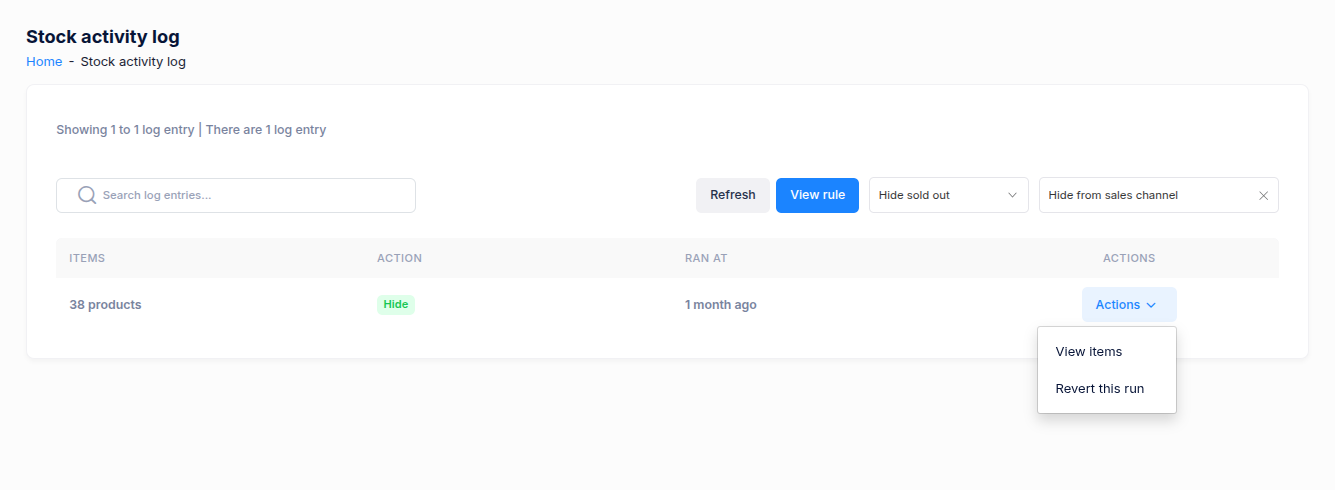
Each entry shows the number of items, the action or result, and when it ran. Select Actions → View items to inspect the products or variants in that run. Use Refresh to check for newer entries.
For a Hide sold out rule, the action shows whether the run hid products, unhid them, or did both. It also shows failed, skipped or reverted items where applicable. A skipped item is a bundle product that one of the rule's sales channels does not accept; see why bundle products show as Skipped. For an alert, the result shows whether a digest was Sent, there was No send, or sending failed. Alerts only notify you; they do not change product visibility.
Revert a Hide sold out run
For a Hide sold out entry that changed products, choose Actions → Revert this run when that option is available. The revert appears as its own log entry. Review the selected rule and run before reverting; this changes the current product state.
Alert runs have no revert action because they do not change products. If you need to change an alert, use View alert to open its settings.