Create a rule to hide products when stock falls, bring them back when stock recovers, or both. Choose which products the rule watches and when it runs.
- In Hide Out of Stock Push Down, open Stock operations → Hide sold out and select Create rule.
- Enter a Name that will help you recognise the rule in the list.
- Under Schedule, choose Instant, Repeat, or Manual. If you choose Repeat, set how often the rule runs. Manual rules run when you start them from the rules list.
- Turn on Hide settings, Unhide settings, or both. Set the stock levels and choose what happens to the product when each condition is met.
- Choose the products under Targeting.
- Review the Summary, then select Create rule.
Configure Hide and Unhide
Each setting has its own stock threshold and action. For a basic sold-out rule, set Hide to At or below 0 and Unhide to At or above 1, using Total inventory. The Unhide threshold must be higher than the Hide threshold when both are on.
Choose at least one visibility action for each setting you turn on. For example, Set status to Draft under Hide and Set status to Active under Unhide. You can also remove products from selected sales channels and put them back on those channels when stock returns.
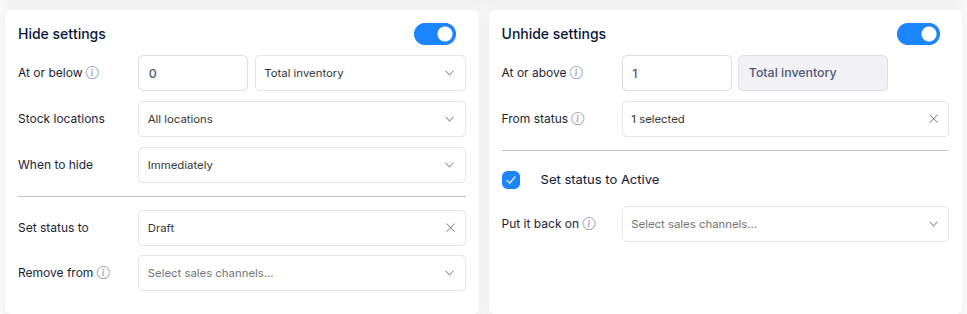
This example uses Repeat. Instant rules count stock across all locations and do not offer a hide delay.
See Set hide and unhide conditions for the stock modes, locations, delays, statuses, sales channels, and redirects.
Choose the products
For Repeat or Manual, Targeting may offer these options, depending on the rule settings:
- All products — let the rule watch the whole catalogue.
- Smart — select a saved product or variant filter.
- Manual — select the products yourself.
- Upload product list — import a list of products.
For Instant, choose All products or an Event filter. Event filters are used by Hide Out of Stock Push Down's Instant hide sold out rules; they are separate from the Smart filters above. See Run a hide sold out rule instantly for the Instant settings and Event filter setup.
Use Preview to check the products and expected action before you create the rule, where a preview is available.
See Choose products for a hide sold out rule for how each option works and which settings can limit the choice.
Review and create
Turn on Email notification and enter an address if you want a message each time the rule runs. Check the Summary for the schedule, hide and unhide settings, and targeting. Then select Create rule.