A low-stock alert emails you a list of products whose inventory is at or below a threshold you choose. You can run it manually or schedule it to check regularly.
Create the alert
- In Hide Out of Stock Push Down, open Stock operations → Alerts and select Create alert.
- Enter a name and choose Low stock under Action mode.
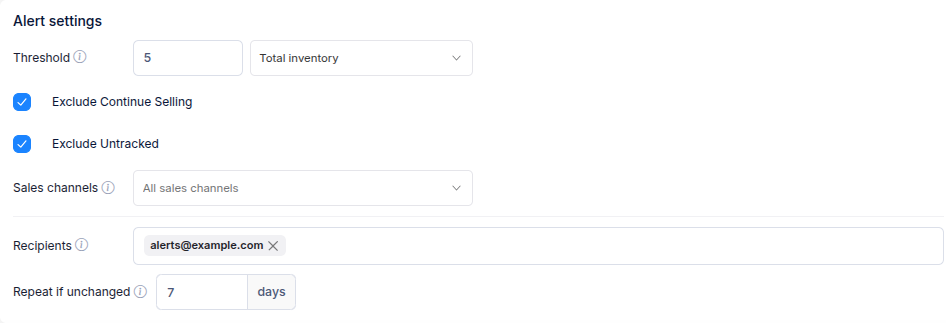
- In Alert settings, enter a Threshold and choose a stock Scope. For example, 5 with Total inventory finds products whose total stock across their variants is 5 or less.
- Review Exclude Continue Selling and Exclude Untracked. Leave them on if you do not want products that keep selling at zero stock or do not track inventory in the email. Use Sales channels if you only want products published on selected channels.
- Add the email addresses under Recipients. You can add up to five. Repeat if unchanged controls how many days to wait before emailing the same matching products again; the default is 7 days.
- In Targeting, choose All products, Smart, Manual, or Upload product list to decide which products the alert watches. See Choose products for a stock alert for how each mode works.
- Choose Repeat and set a schedule in your store's timezone, or choose Manual if you will run the alert yourself. Review the summary and select Save.
After saving, open the alert and select Run now to check it immediately. A repeat alert runs on its schedule. To see which products currently match, use Only matching products in the alert's Targeting section.