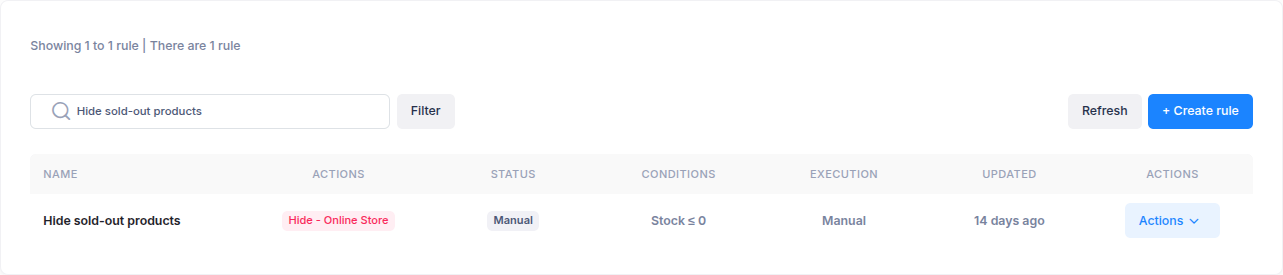
Choose when a hide sold out rule runs on the Create rule form. After saving it, use the Hide sold out list to run or manage it. For a rule that reacts to stock changes, see Run a hide sold out rule instantly.
Choose Manual or Repeat
Under Schedule, select one of these options:
- Manual saves the rule so you can start it with Run now from the rules list.
- Repeat runs the rule on the schedule you choose. Set it to run hourly, daily, weekly, or monthly. The form shows the store timezone used for the schedule.
You can also select Run now for a Repeat rule when it is not already queued or running. This runs it without changing its repeat schedule.

Find and manage a rule
Open Stock operations → Hide sold out. The list shows each rule's name, Hide and Unhide actions, status, conditions, execution type, and last update. Search by name or use the Needs attention filter to find rules that need review.
Open a rule's Actions menu to choose an available action:
| Action | When to use it |
|---|---|
| Run now | Start a Manual or Repeat rule when no run is already queued or in progress. |
| Pause | Stop an active Repeat rule from running on its next schedule. Manual rules do not have a Pause action. |
| Resume | Restart a paused Repeat rule. |
| Cancel | Stop a run that is currently running. |
| View logs | Open the activity log filtered to this rule. |
| Edit | Change a rule when it is not queued or running. |
| Delete | Remove a rule when it is not queued or running. Deletion cannot be undone. |
The menu shows only actions available for the rule's current status. Pause and Resume also apply to Instant rules; see the Instant guide for how those rules behave.