Use the Push down collection list to switch on Push down or change its settings for several collections at once. A bulk change applies only the settings you edit; each collection keeps its other settings.
Select collections
- In Hide Out of Stock Push Down, open Stock operations → Push down.
- Tick the collections you want to change. Use the checkbox at the top of the list to select the current page. After selecting a page, you can choose Select all matching collections to include collections on other pages that match your search.
- Select Push down settings in the selection bar.
Choose the bulk change
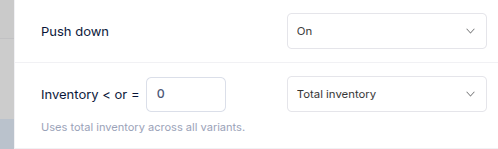
At the top of the drawer, choose what happens to Push down:
| Choice | Result |
|---|---|
| No change | Leave each collection's Push down switch as it is. Apply any settings you change to collections that already have Push down on. |
| On | Switch on Push down for selected collections that are off, and apply the settings you change. |
| Off | Switch off Push down on the selected collections. The other settings are not applied. |
Change any inventory, tag or location settings that should be the same across the selected collections. A Changed badge appears beside an edited setting. Settings without that badge stay as they were on each collection. You can also choose whether restocked products return to their previous positions on collections sorted manually in Shopify.
Select Save. The result message shows how many collections changed and whether any were left out because of a plan limit, incomplete product sync or a linked strategy. Check that message before assuming every selected collection changed.
Switch on Push down for all collections
Use Enable all at the top of the Push down list when you want to switch it on across the whole list. Review the confirmation before applying it. If your plan limits how many collections can use Push down, the app enables them in list order up to that limit.
For settings on one collection, see Set up Push down for a collection. For what the stock and SKU settings mean, see Choose Push down conditions.