Choose Instant when a hide sold out rule should respond to stock changes without waiting for a repeat schedule. After you create the rule, it checks existing products shortly after saving. It then checks incoming stock changes against your Hide and Unhide settings.
Choose Instant and set the stock conditions
- Open Stock operations → Hide sold out and select Create rule.
- Enter a name and select Instant under Schedule.
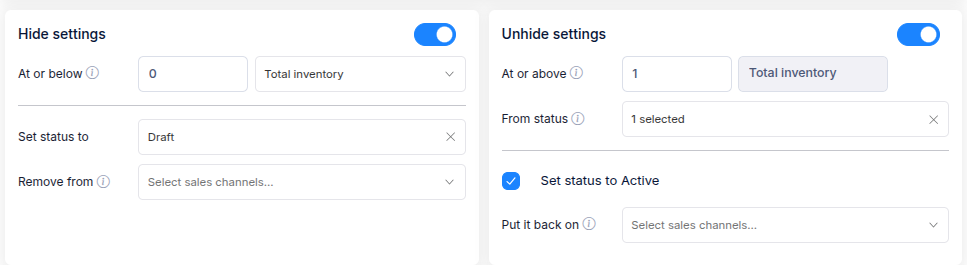
- Turn on Hide, Unhide, or both. Set the stock thresholds and choose the status or sales-channel changes for each action.
Instant rules can use Total inventory, Any variant, or All variants. They count stock across all locations; the location selector is not shown. They cannot use Stock ratio, Available variants, or a hide delay. For the meaning of each stock mode and visibility action, see Set hide and unhide conditions.
Choose which stock changes to check
Under Targeting, choose one option:
- All products checks each incoming stock change against the rule's Hide and Unhide conditions.
- Event filter checks only stock changes that match a saved Event filter. The rule's stock conditions still decide whether a matching product should be hidden or unhidden.
Event filters are available with Hide Out of Stock Push Down and are used for Instant hide sold out rules. They are different from the Live and Background filters used for Smart targeting in Manual and Repeat rules.
To create one, select Event filter → New filter. On the filter form, choose Event as the type, use the Inventory quantity changes trigger, add the conditions for the changes you want to include, and save. Then select the saved Event filter on the rule form. The filter must be active to use it.

Create and manage the rule
Review the Summary and select Create rule. You can see its status in the Hide sold out list, pause or resume it there, and open View logs to review its activity.