A hide sold out rule can hide products when stock falls and bring them back when stock recovers. In Hide settings and Unhide settings, choose the stock condition and what the rule changes. Turn on at least one of these settings.
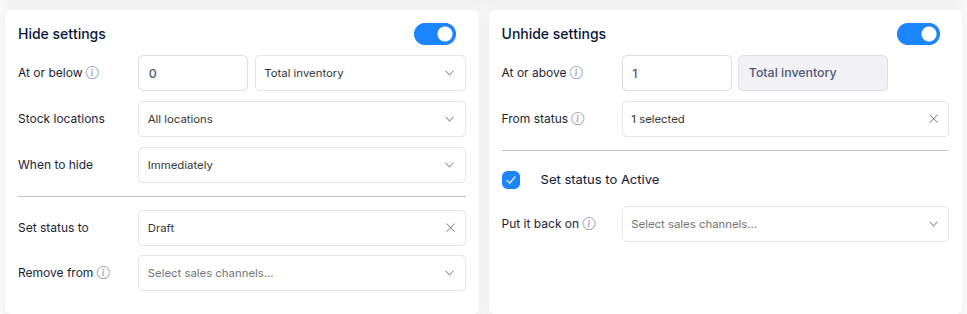
For a straightforward sold-out rule, choose Total inventory, hide At or below 0, and unhide At or above 1. Then choose how the product should be hidden and restored.
Choose how stock is measured
The stock mode is shared by Hide and Unhide when both are on. Each branch has its own threshold: Hide acts at or below its value; Unhide acts at or above its value.
| Stock mode | What the threshold measures |
|---|---|
| Total inventory | The product's total stock across its variants. This is the mode to use when you want to count stock at selected locations. |
| All variants | Every variant must meet the threshold. For example, Hide at 0 waits until every variant is at 0 or below. |
| Any variant | At least one variant must meet the threshold. Hide at 0 can hide the whole product when just one variant sells out. |
| Stock ratio | The percentage of a product's variants that are available. For example, 1 available variant out of 4 is 25%. |
| Available variants | The number of variants that are available. |
If both Hide and Unhide are on, the Unhide threshold must be greater than the Hide threshold. For instance, Hide at 0 and Unhide at 1 prevents the two actions from meeting the same threshold.
Stock locations
With Total inventory, choose All locations, Only selected, or All except selected. You can count different locations for Hide and Unhide; use Use the locations selected in Hide settings when both should use the same selection. The variant-based stock modes use all locations.
Set the hide action
In Hide settings, choose Immediately or After a delay. A delay requires stock to remain at or below the threshold for the number of days you enter, from 1 to 90. The delay option is unavailable for an Instant rule.
Choose at least one action:
- Set status to changes the product to Unlisted, Draft, or Archived.
- Remove from unpublishes the product from the sales channels you select. Choose Online Store to remove it from the storefront. You can select channels alongside a status change.
Redirect appears when Online Store is selected under Remove from. Choose no redirect, the home page, or a custom URL. A custom redirect needs a valid URL.
Set the unhide action
Turn on Unhide settings if the rule should bring products back when stock reaches the Unhide threshold. From status limits which product statuses it can act on. Select the statuses you expect the rule to restore, especially if some products are kept in Draft or Archived for other reasons.
Choose at least one action:
- Set status to Active changes the product status to Active.
- Put it back on republishes the product to the sales channels you select.
Match the Unhide action to the Hide action. For example, if Hide sets a product to Draft and removes it from Online Store, select Set status to Active and Online Store under Put it back on to restore both changes.
Notifications
Turn on Email notification and enter an email address if you want a message each time the rule runs.