Use Targeting on a Manual or Repeat hide sold out rule to choose which products it watches. The available choices depend on the rule's settings; the form shows when a choice cannot be used. For an Instant rule, see Run a hide sold out rule instantly.
All products
Choose All products when the rule should check your whole catalogue. Use Only matching products to see which products currently meet the Hide or Unhide condition before saving. All products is available once the app has the product data it needs.
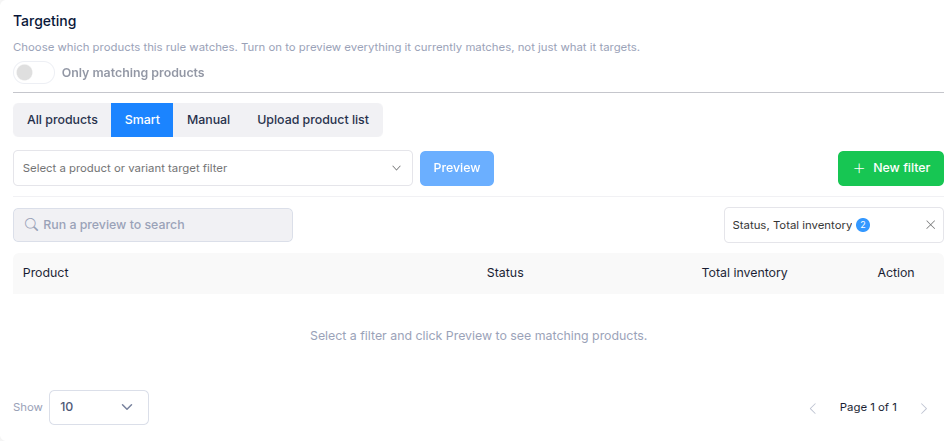
Smart
Choose Smart and select a saved product or variant filter. Select Preview to check which products the filter currently targets. Use New filter if you need to create one first.
A variant filter selects the parent product when one of its variants matches. The rule then checks that product using its Hide and Unhide stock conditions; it does not limit the stock check to the matched variant.
The form offers Live or Background filters according to your rule's settings. For example, a rule that changes sales-channel publication, counts stock at selected locations, or uses a variant-based stock mode needs a Background filter. If a filter type is unavailable, choose an offered filter type or adjust the rule settings.
Manual
Choose Manual, then Browse to search for and select specific products. Review the selected products in the table; remove any you do not want the rule to watch. You can select up to 100 products manually. The selection stays fixed until you edit the rule.
Manual selection is not available for every combination of stock mode, location choice, and visibility action. The form shows when it cannot be used.
Upload product list
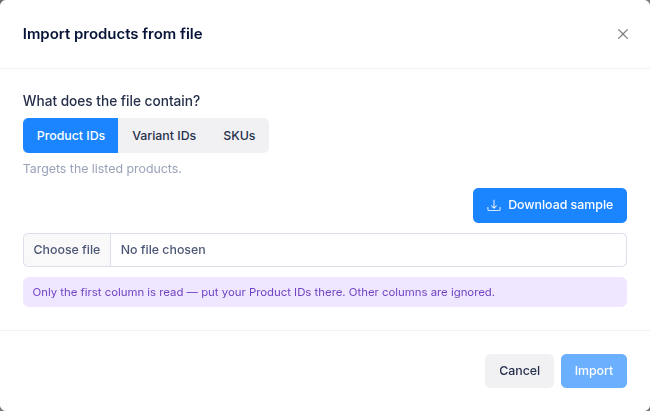
Choose Upload product list, then Upload CSV / Excel. Select whether the first column of the file contains Product IDs, Variant IDs, or SKUs. You can download a sample file for the format you choose, then upload a .csv, .xlsx, or .xls file.
Product IDs target the listed products. Variant IDs and SKUs target the parent products of the matching variants. The file can contain up to 50,000 unique entries. Review the recognised entries before selecting Import, then check the targeted products in the table. Use Replace file if you need to change the list. The imported selection stays fixed until you replace it.
Check which products will change
The targeting table shows the products the rule watches. Turn on Only matching products to check which of them currently meet the Hide or Unhide stock condition and see the expected action. If you change the rule's settings afterwards, select Check matches again before creating the rule.