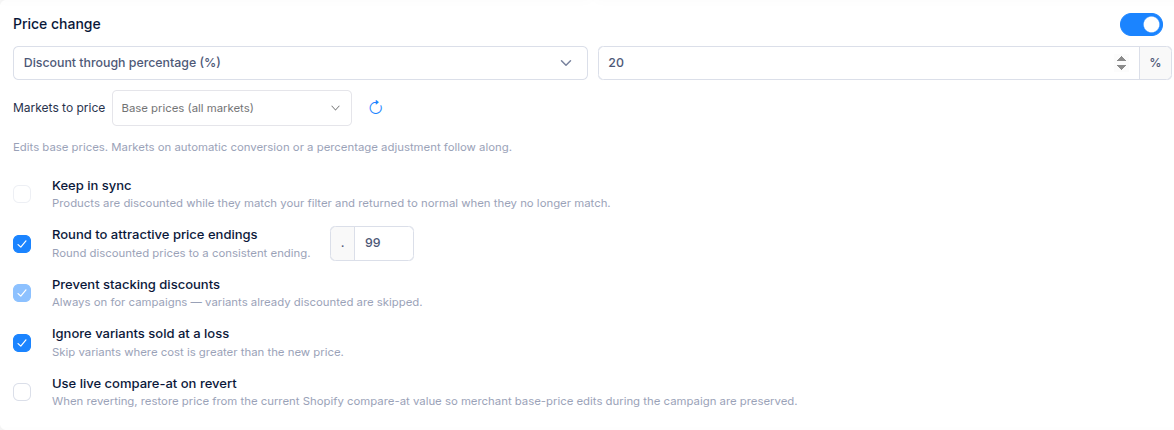
Turn on Price change in the Create campaign form to discount the variants you target. Choose one discount type and enter its value. The campaign applies the price change when it starts; setting up the form does not change live prices.
Choose a discount type
| Discount type | What it does | Example before rounding |
|---|---|---|
| Discount through percentage (%) | Reduces each variant's current price by the percentage you enter. | 20% off a $100 item gives $80. |
| Discount by cutting price (amount) | Subtracts the amount you enter from each variant's current price. | $15 off a $100 item gives $85. |
| Discount by offering a new price | Sets the targeted variants to the new price you enter. | A new price of $75 changes a $100 item to $75. |
- Open Promotions → Campaigns and select Create campaign.
- Turn on Price change.
- Select a discount type and enter its percentage, amount or new price.
- Choose Markets to price if the sale should affect a specific Shopify Market.
- Choose the other price options you need, then preview the targeted variants before creating the campaign.
The preview shows the expected price and compare-at price for matching variants. Check it before creating the campaign, especially if the variants have different starting prices. Round to attractive price endings can change the final price from the simple calculation in the examples above.
Check the price options
- Markets to price — leave Base prices (all markets) selected for a base-price sale, or choose specific markets. See Set market-specific prices for a sales campaign for how fixed market prices and currencies affect the result.
- Keep in sync — add newly matching variants to a running Smart-filter campaign and revert their changes when they stop matching. It needs an end time and cannot be used with selected markets. See Keep sales campaign products in sync.
- Round to attractive price endings — turn this on and enter the ending you want, such as .99.
- Prevent stacking discounts — always on for campaigns. Variants that are already discounted are skipped.
- Ignore variants sold at a loss — skip a variant if its cost is greater than the new price.
- Use live compare-at on revert — when reverting, restore the price from the current Shopify compare-at value. Use this if you want base-price edits made during the campaign to be preserved.
Tags, display widgets and email notifications have their own sections in the Create campaign form. For the full setup, see Create a sales campaign.
If you have questions, use the chat button in the corner or email help@ouiteo.com.