On this page
- Name
- Countdown
- Text
- Link button
- Templates
- Styling
- Schedule
- Targeting
- Preview
- Summary
- Countdown timer list
- Countdown Timer actions
A countdown timer shows a live message, such as "sale ends in", on your storefront, counting down to the end of a promotion. This page sets up one timer: its wording, its look, which products show it, and when.
Name
Give the timer a name so you can find it again later, for example Black Friday Timer.
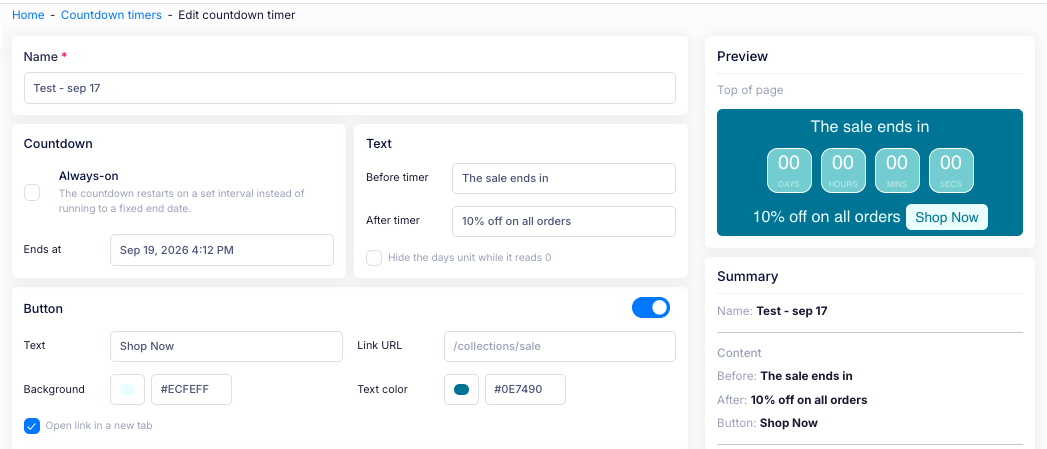
Countdown
Set what the timer counts down to:
- Ends at — the date and time the countdown finishes.
- Always-on — turn this on to restart the countdown on a set interval instead of running to a fixed end date.
Text
Set the wording around the countdown:
- Before timer — the message shown before the countdown, for example The sale ends in.
- After timer — the message shown after it, for example 10% off on all orders.
- Hide the days unit while it reads 0 — hide the days part when less than a day remains.
Link button
Turn on Link button to add a call to action:
- Text — the button's label, for example Shop Now.
- Link URL — where the button goes, for example /collections/sale.
- Background and Text color — the button's colours.
- Open link in a new tab — open the link in a new browser tab.
Templates
Pick a starting template, then tweak any of the styling below to suit your store.
Styling
- Position — where the timer sits on the page, for example Top of page.
- Clock theme — the timer's preset look, for example Customized 2.
- Background and Text color — the timer's colours.
- Opacity — how see-through the timer is.
- Font family and Font size — the timer's font.
Schedule
Turn on Schedule to control when the timer runs, then choose when it starts:
- Start immediately — show the timer now.
- Schedule for later — set Start at to the date and time the timer begins.
- Save as draft — set the timer up without starting it.
Then choose what happens at the end:
- No automatic revert — the timer stays until you turn it off.
- Revert at a specific time — the timer stops at the time you set.
Targeting
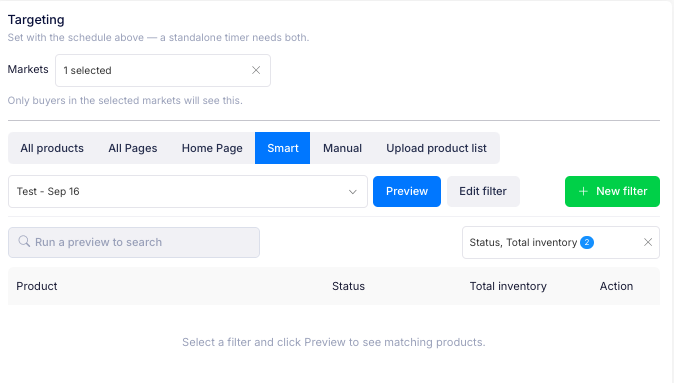
Choose which products show the timer. The timer is set with the schedule above — a standalone timer needs both.
- Markets — set which markets the timer shows in.
- Choose where it shows:
- All products — every product.
- All Pages — every page.
- Home Page — the home page.
- Smart — choose a filter, then select Preview to see the matched products. Use Edit filter to change it, or + New filter to build a new one.
- Manual — choose the products yourself.
- Upload product list — upload a list of products to target.
For more details on targeting types, see Targeting in the Sales Campaign guide.
Preview
The preview shows the timer as shoppers will see it, using your wording, colours and button.
Summary
The summary panel shows the timer as you set it up: its Content (the before and after messages and the link button), its Style (position and clock theme), the Schedule, and the Targeting. Anything still to set is highlighted.
Countdown timer list
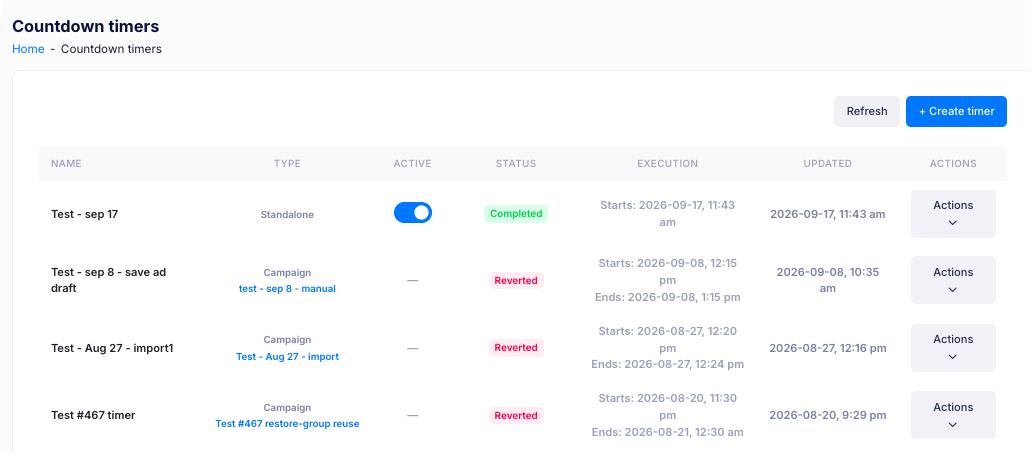
Once you have created timers, the Countdown timers page lists them. Each row shows:
- Name — the timer's name.
- Type — Standalone, or Campaign with the campaign it is linked to.
- Active — the switch that turns the timer on or off.
- Status — where the timer has got to, such as Completed or Reverted.
- Execution — when it runs, with a start time and, for a campaign timer, an end time.
- Updated — when it last changed.
Select Refresh to load the latest list.
Countdown Timer actions
Select Actions on a row to:
- Edit — change the timer's settings.
- Duplicate — make a copy of it.
- Delete — remove it.
Select + Create timer to add a new timer.
FAQ
Which products will show the timer? Only the products you target, whether you pick them by filter, by manual, or product list.
What happens when the timer reaches zero? The timer hides itself automatically once it expires, so shoppers won't see a finished countdown.
Can I run the same timer on a repeating schedule? Yes. You can set a recurring pattern so the timer runs automatically during the same window each week or month.
Can I preview how the timer will look? Yes. The setup screen includes a live preview so you can see the timer before it goes live.
Can I turn a timer off early? Yes. You can deactivate any timer at any time, and it will stop showing on your storefront.
If you have additional questions, contact us using the chat button in the corner or email us at help@ouiteo.com.