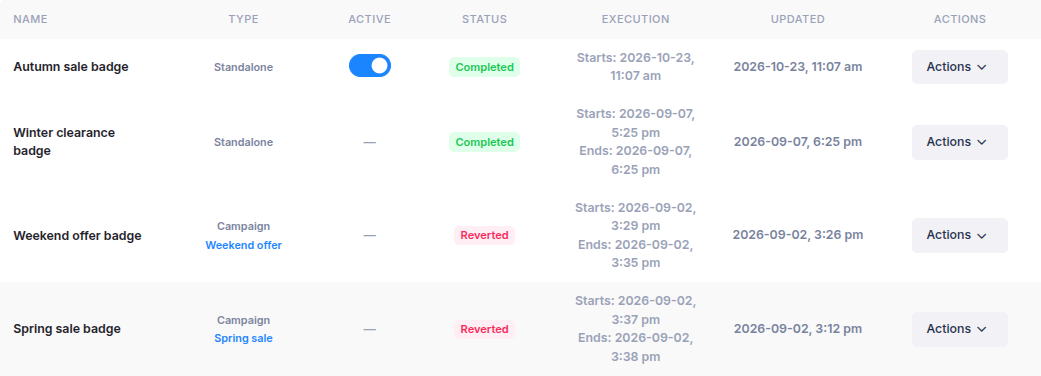
Open Sales badges in Sales Discount Manager to find badges you have created. The list shows each badge's name, type, active state, status, execution time and last update. Select Refresh to load the latest list.
Find a badge
Select a badge's name to open its details. Standalone badges have their own schedule and targeting. A badge marked Campaign is linked to a sales campaign; select the campaign name in its row to open that campaign.
Use the Status column to distinguish drafts, scheduled or paused badges, completed badges and badges that have been reverted. A dash in the Active column means there is no storefront switch for that row.
Show or pause a standalone badge
Use the Active switch on an eligible standalone badge's row to take it off the storefront or put it back. Drafts and campaign-linked rows do not show this switch. If the badge is on but does not appear where you expect, check its schedule, markets and product targeting.
Edit, duplicate or delete
Select Actions on a badge's row:
- Edit opens the badge settings so you can change them.
- Duplicate creates a copy you can adjust before using it.
- Delete removes the badge after you confirm the action.
To make a new badge, see Create a sale badge. When a badge is used in a campaign, the campaign controls when and where its design appears; see Create a sales campaign.
If you have questions, use the chat button in the corner or email help@ouiteo.com.