Use Targeting in the price edit form to choose the variants you want to change. You can select a saved filter, choose variants yourself, or upload a list. Check the selected variants before saving the edit.
Smart targeting
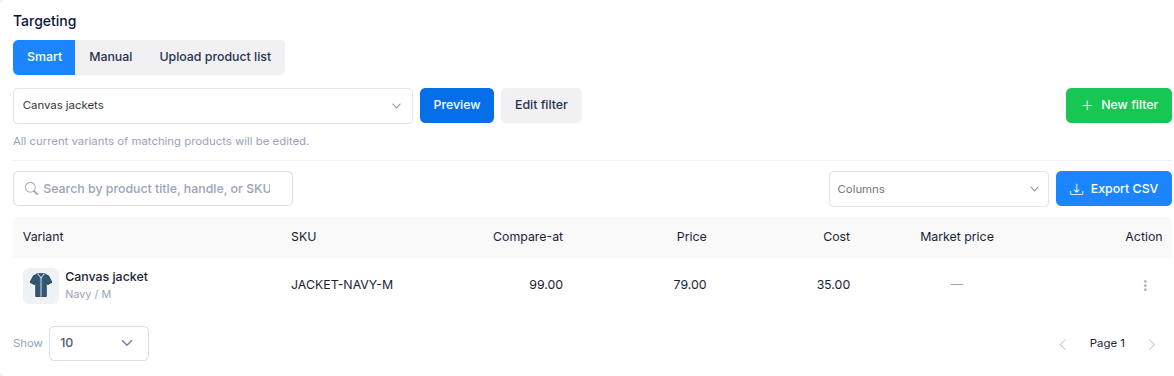
Choose Smart when you can describe the products or variants with a saved filter.
- Select Smart.
- Choose a filter from Select a product or variant target filter. Select New filter to create one, or Edit filter to change the selected filter.
- Select Preview and check the matching variants. Adjust the filter and preview again if the results are not what you expect.
A product filter includes the current variants of matching products. A variant filter includes the variants that meet its conditions. The preview lets you check which variants the price edit will change.
Manual targeting
Choose Manual when you have a small, specific set of variants in mind.
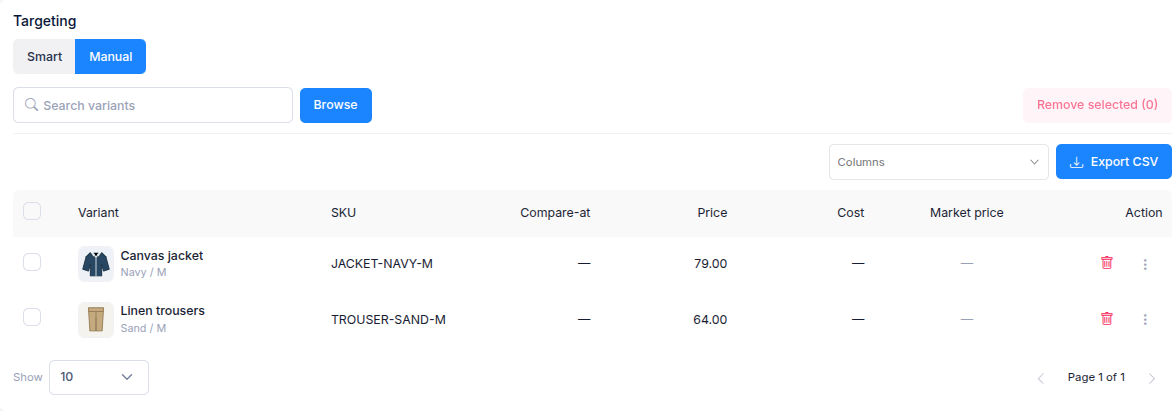
- Select Manual, then Browse.
- Search or browse for the variants you want and add them to the selection.
- Review the selected variants in the table. Use the bin icon to remove one, or select several and choose Remove selected.
You can select up to 100 variants manually. For a larger list, use Upload product list.
Upload a product list
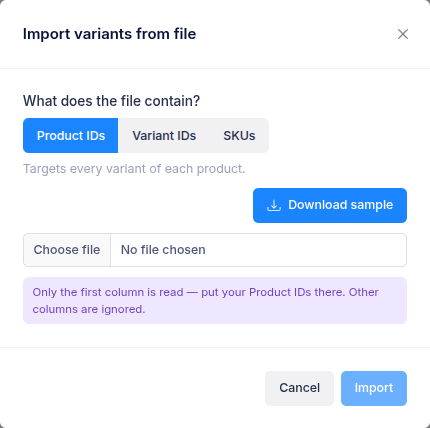
Choose Upload product list when you already have product IDs, variant IDs, or SKUs in a file.
- Select Upload product list, then Upload CSV / Excel.
- Choose whether the first column contains Product IDs, Variant IDs, or SKUs. Select Download sample if you need a template.
- Upload a
.csv,.xlsx, or.xlsfile. The import reads the first column; other columns are ignored. - Check the recognised entries, then select Import.
- Review the matched variants in the table. Select Replace file if you need a different list.
Product IDs include all variants of the listed products. Variant IDs and SKUs select matching variants. A file can contain up to 50,000 unique entries.
If you have questions, use the chat button in the corner or email help@ouiteo.com.