Use an import when each product or variant needs its own exact Price, Compare-at price, or Cost. The file supplies both the items to edit and their new values. This is different from Upload product list with a regular edit type, which only chooses the items and applies the same rule to all of them.
Prepare the file
Download a sample from the import dialog, or make a .csv, .xlsx, or .xls file with:
- One identifier column:
product_id,variant_id, orsku. - At least one value column:
price,compare_at_price, orcost.
For example, to set a different Price for each variant:
| variant_id | price |
|---|---|
| 123456789 | 29.99 |
| 987654321 | 34.50 |
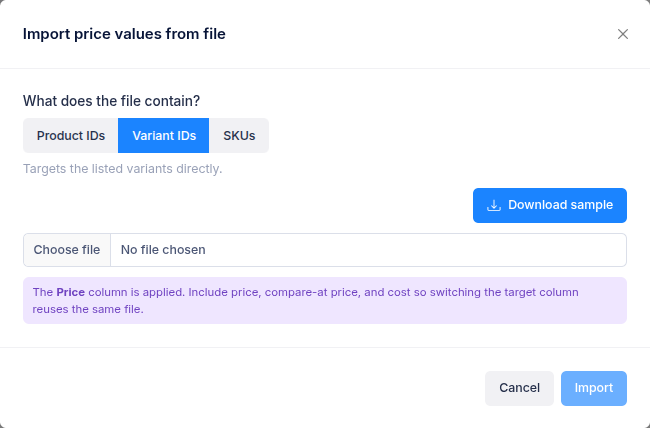
Use the header names shown here. Choose the matching identifier type in the import dialog. Product IDs apply the row's value to every variant of that product; Variant IDs target individual variants; SKUs target variants with a matching SKU.
You can include all three value columns in one file, but the edit applies only the field selected in Target column. For example, Import price uses the price column and leaves Compare-at price and Cost alone. If you change the target field before saving, the other columns can be used without uploading the file again.
Values must be numbers of zero or more. Rows without a valid identifier or any usable value are skipped. Rows without a value for the selected field are not applied. The import accepts up to 50,000 unique identifiers.
Import the values
- Open Price Editor and select Create price edit.
- Under Edit values, choose Price, Compare-at price, or Cost in Target column.
- In Edit type, choose the matching Import price, Import compare at price, or Import cost option.
- In Targeting, select Upload CSV / Excel. The import dialog opens.
- Choose Product IDs, Variant IDs, or SKUs to match your file. Select Download sample if you want a template for that identifier type.
- Choose your file. Check the number of rows ready and how many contain a value for the field you selected.
- Select Import, then review the matched variants and their new values in the preview. Use Replace file if you need to correct the import.
- Finish the other settings and create the price edit.
If the file has no values for the selected field, the edit cannot be created. Choose the correct field or add its value column to the file. Imports run once: you can start one immediately, schedule it for later, or run it manually, but you cannot use Repeat.
If you have questions, use the chat button in the corner or email help@ouiteo.com.