Keep in sync lets a sales campaign follow a Smart filter while it runs. When variants begin matching, the campaign discounts them. When they stop matching, it reverts their campaign changes. The campaign continues for the variants that still match.
For example, suppose your Smart filter selects products with a Summer sale tag. A product that gains the tag during the campaign joins the sale at the next check. If the tag is removed, its campaign discount is reverted. Variants added to a product that already matches can join too. These checks happen periodically, so the changes are not immediate.
Set up Keep in sync
- Create a campaign and choose Start immediately or Schedule for later.
- Choose Revert at a specific time and set End at. The campaign can run for no more than 60 days.
- Turn on Price change and set the discount.
- Turn on Keep in sync under the price options.
- Under Targeting, choose Smart, select a saved filter and select Preview to check the current matches.
- Review the Summary, then create the campaign.
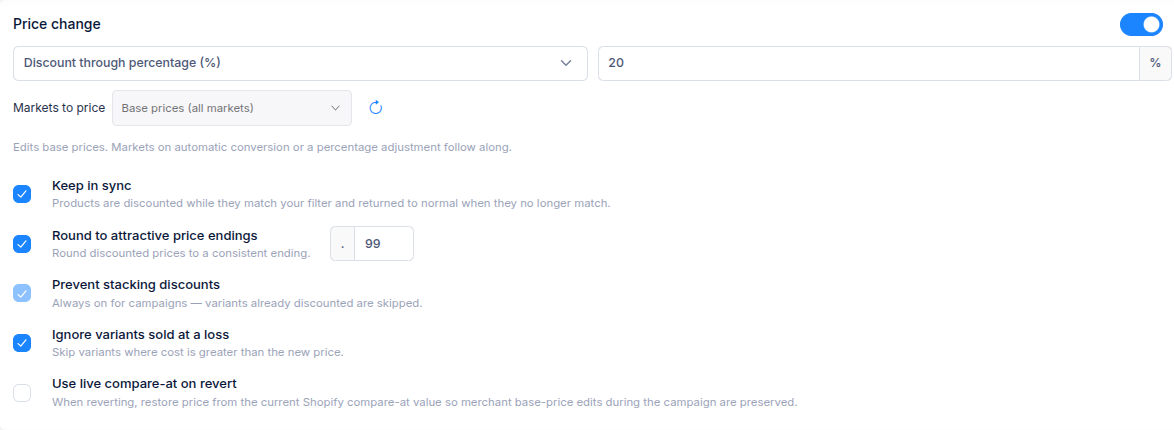
Keep in sync works with base prices. You cannot select individual markets while it is on. Manual and Upload product list target a fixed set, so Keep in sync is unavailable with those methods. See Choose products or variants for a sales campaign for the targeting options.
What happens during the campaign
The campaign checks the filter regularly. It applies the price change to newly matching variants and reverts the price change for variants that have left. If you also set campaign tags or display widgets, those campaign effects follow the matching products too. At End at, the remaining campaign changes are reverted.
Prevent stacking discounts stays on. A variant that is already discounted is skipped rather than discounted again.
If you cancel a running campaign early, it stops checking for new matches, but its applied changes remain in place. Use Revert from the campaign list after cancelling if you want to undo those changes.
If you have questions, use the chat button in the corner or email help@ouiteo.com.