Use Targeting on the Create campaign form to choose which variants receive the campaign's effects. You can use a saved filter, pick variants yourself or upload a list.
- Choose Smart when you have a rule for which products or variants should qualify.
- Choose Manual for a small, specific set of variants.
- Choose Upload product list when you already have a list of product IDs, variant IDs or SKUs.
Smart targeting
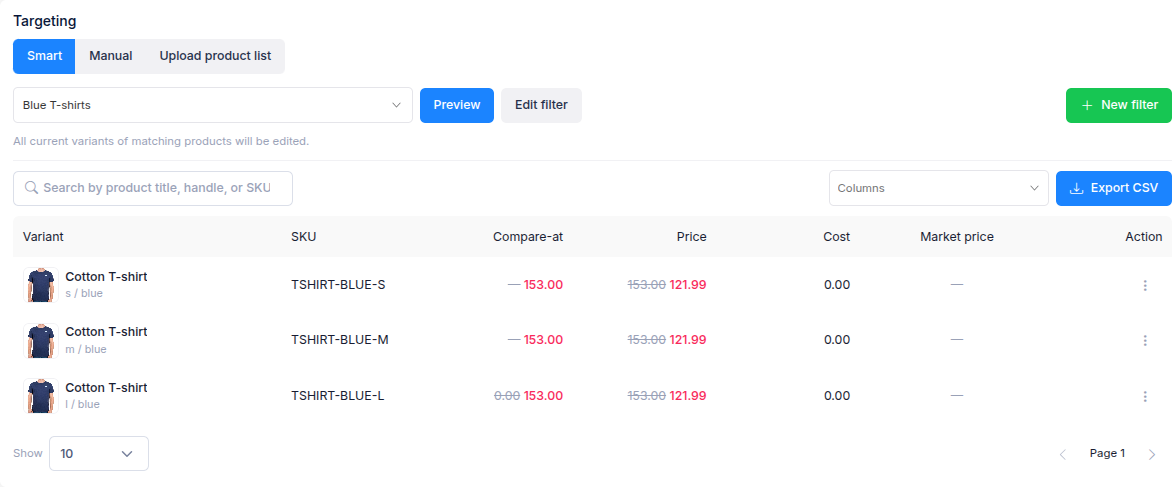
- Select Smart.
- Choose a saved product or variant filter from Select a product or variant target filter. Select New filter if you need to create one first.
- Select Preview and check the matching variants.
- If the results are wrong, edit the filter and run Preview again before creating the campaign.
A product filter targets the variants of matching products; a variant filter targets the variants that match its conditions. The preview shows the current matches. For a campaign that adds newly matching variants and reverts those that stop matching while it runs, see Keep sales campaign products in sync.
Manual targeting
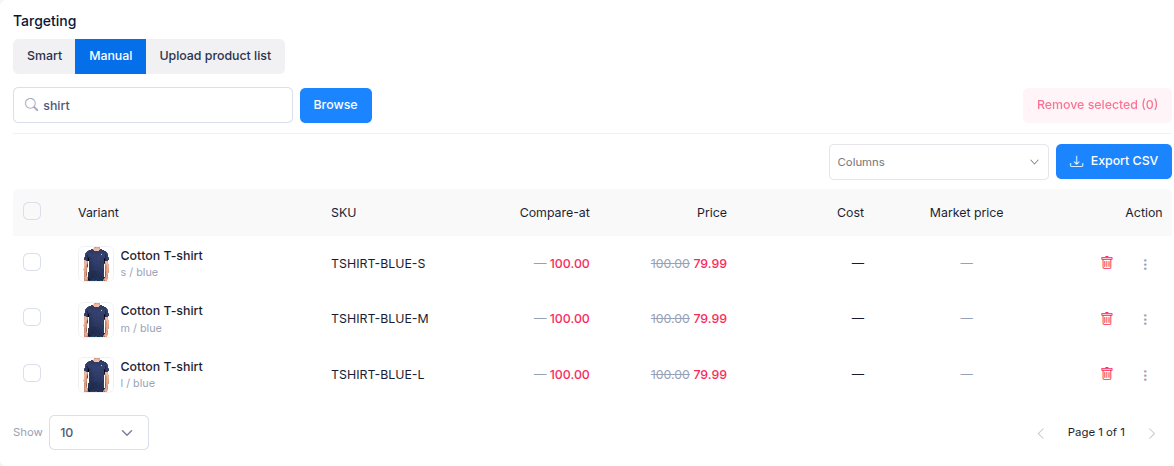
- Select Manual, then select Browse.
- Search or browse for the variants you want and add them to the selection.
- Check the selected variants in the table. You can search the list, choose Columns to show more information, or select Export CSV.
- To remove a variant, use its bin icon. To remove several, tick their checkboxes and select Remove selected.
You can select up to 100 variants manually. If you have a longer list, use Upload product list.
Upload a product list
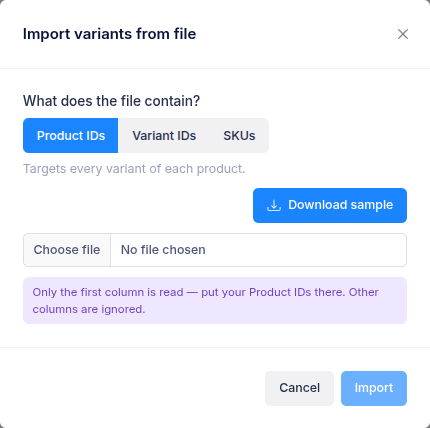
- Select Upload product list, then Upload CSV / Excel.
- Choose what the first column of your file contains: Product IDs, Variant IDs or SKUs. You can select Download sample for an example of the chosen format.
- Upload a
.csv,.xlsxor.xlsfile. Only its first column is read; other columns are ignored. - Check how many unique entries were recognised, then select Import.
- Review the matched variants in the table before creating the campaign. Select Replace file if you need to change the list.
Product IDs target every variant of the listed products. Variant IDs target those variants directly; SKUs target variants with matching SKUs. The file can contain up to 50,000 unique entries. The imported list stays fixed during the campaign, so use Smart targeting with Keep in sync if you want variants to join or leave automatically.
If you have questions, use the chat button in the corner or email help@ouiteo.com.