On this page
Name
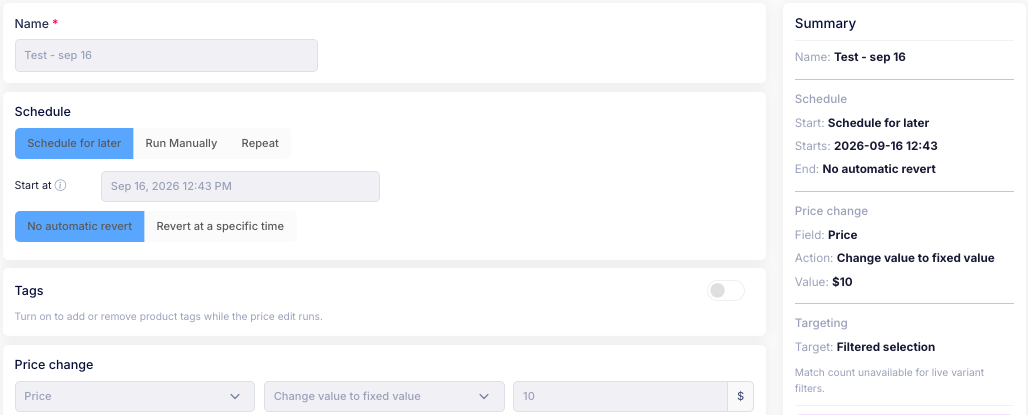
A price edit needs a name before you can save it. Type one in Name, for example Black Friday 20% Off, so you can find the edit again later.
Schedule
Choose when the price edit runs:
- Start immediately — apply the change now.
- Schedule for later — start at a date and time you choose.
- Run Manually — set the edit up now and start it yourself later.
- Repeat — run the edit again on a schedule.
With Schedule for later selected, set Start at to the date and time the edit begins.
Then choose what happens when it finishes:
- No automatic revert — prices stay as the edit set them.
- Revert at a specific time — prices return to normal at the End at time you set.
Tags
Turn on Tags to add or remove product tags while the price edit runs.
Price change
This is where you say what the edit changes:
- Choose the field to edit: Price, Compare-at price, or Cost.
- Choose the change to make. The options are grouped:
- Set — Change value to fixed value.
- Adjust — Decrease by percent, Increase by percent, Decrease by fixed amount or Increase by fixed amount.
- Based on — Update value based on original value, Update value based on compare-at price, Update value based on price or Update value based on cost.
- Import — Import price, Import compare-at price or Import cost.
- Enter the value to apply.
Choose Markets to price to set which markets the change applies to. Base prices (all markets) edits base prices; markets on automatic conversion or a percentage adjustment follow along.
Then choose the options you want:
- Round to attractive price endings — round edited prices to a consistent ending, for example .99.
- Copy old price to compare-at — show the original price as a strikethrough alongside the new price.
- Only set compare-at if currently empty — keep existing compare-at prices and only fill in the empty ones.
- Also apply to compare-at — run the same change on the compare-at price too, so the discount stays the same.
- Prevent stacking discounts — skip variants that are already discounted.
- Ignore variants sold at a loss — skip variants where the cost is greater than the new price.
Notifications
Turn on Email notification to be emailed when the price change is applied, and again when it is reverted.
Targeting
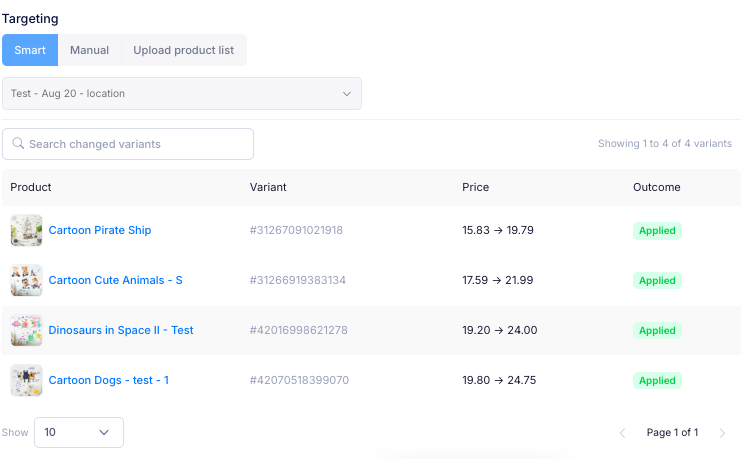
Choose which products the price edit applies to:
- Smart — choose a filter from Select a product or variant target filter, then select Preview to see the variants it matches. Select + New filter to build a new filter.
- Manual — choose the products or variants yourself.
- Upload product list — upload a list of the products to target.
For more details on targeting types, see Targeting in the Sales Campaign guide.
Summary
The summary panel shows the edit as you set it up, so you can check it before saving:
- Name — the edit's name.
- Schedule — when it starts and what happens at the end: No automatic revert, or a revert at the time you set.
- Price change — the Field, Action and Value.
- Targeting — the products the edit targets.
Anything still to set is highlighted, for example a name shown as Not set.
If you have additional questions, contact us using the chat button in the corner or email us at help@ouiteo.com.