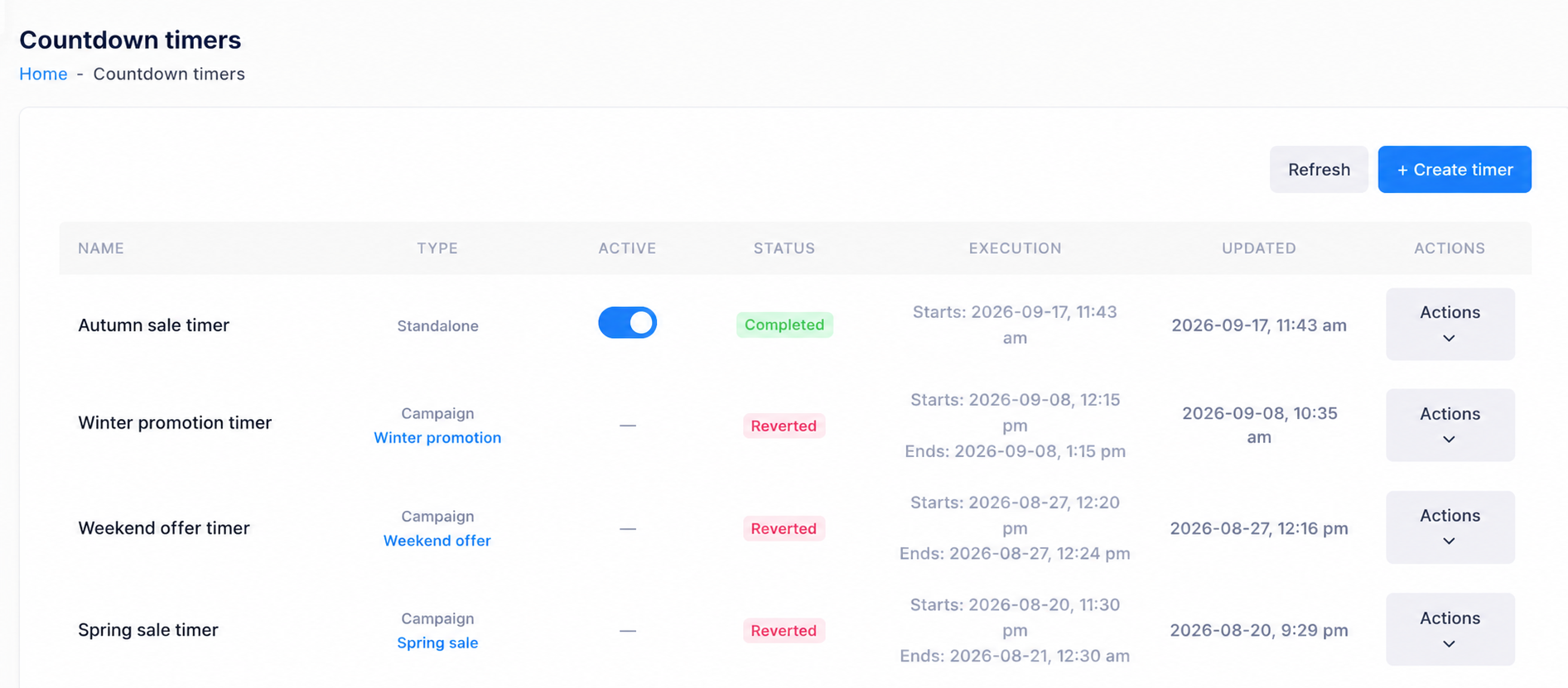
Open Countdown timers in Sales Discount Manager to find timers you have created. The list shows each timer's name, type, active state, status, execution time and last update. Select Refresh to load the latest list.
Find a timer
Select a timer's name to open its details. Standalone timers have their own schedule and targeting. A timer marked Campaign is linked to a sales campaign; select the campaign name in its row to open that campaign.
The Status column helps you distinguish drafts, paused timers, completed timers and timers that have been reverted. A dash in the Active column means there is no storefront switch for that row.
Show or pause a standalone timer
Use the Active switch on an eligible standalone timer's row to take it off the storefront or put it back. Drafts and campaign-linked rows do not show this switch. Check the timer's schedule and targeting if you expect it to appear but cannot see it on your store.
Edit, duplicate or delete
Select Actions on a timer's row:
- Edit opens the timer settings so you can change them.
- Duplicate creates a copy you can adjust before using it.
- Delete removes the timer after you confirm the action.
If you want to build a new timer, see Create a countdown timer. For a timer used in a campaign, the campaign controls when and where its design appears; see Create a sales campaign.
If you have questions, use the chat button in the corner or email help@ouiteo.com.