On this page
A sales badge adds a label to your product images, such as "SALE" or "30% OFF", so a promotion stands out as shoppers browse. This page sets up one badge: its image, where it sits, which products show it, and when.
Name
Give the badge a name so you can find it again later.
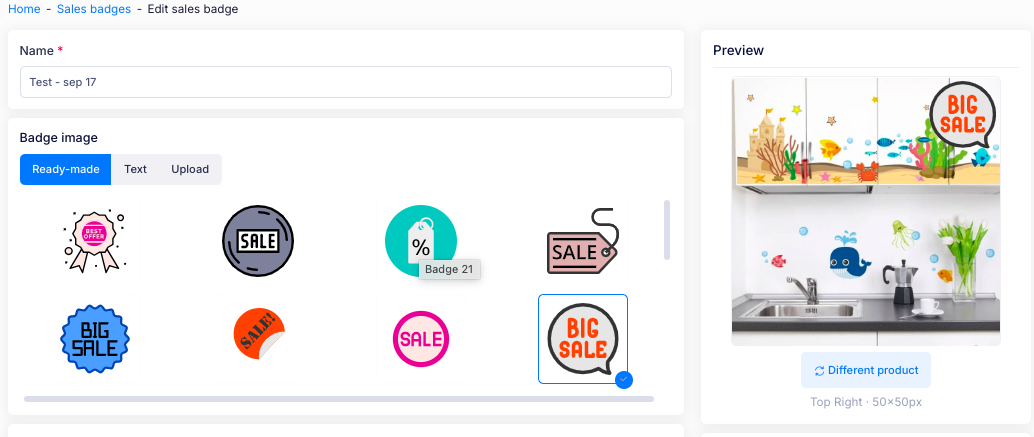
Badge image
Choose how the badge looks. There are three tabs:
- Ready-made — pick one of the preset badges.
- Text — pick a text preset, then set the Label, Font size, Width and Height.
- Upload — upload your own image. On the Upload tab you can add up to 5 custom badges. Images can be JPG or PNG and up to 2 MB each.
Display settings
- Position — where the badge sits on the product image: Top Left, Top Right, Bottom Left or Bottom Right.
- Colours — set the Background, Foreground and Text color with the swatch, or type a hex value.
Schedule
Turn on Schedule to control when the badge shows, then choose when it starts:
- Start immediately — show the badge now.
- Schedule for later — set Start at to the date and time the badge begins.
- Save as draft — set the badge up without starting it.
Then choose what happens at the end:
- No automatic revert — the badge stays until you turn it off.
- Revert at a specific time — the badge stops at the time you set.
Targeting
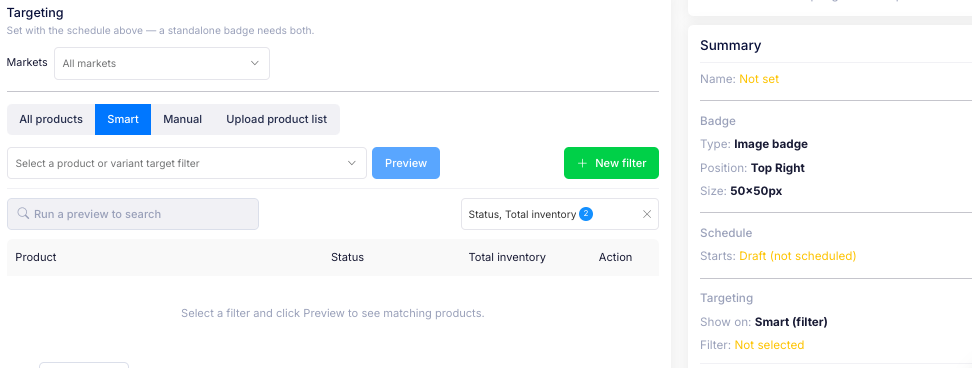
Choose which products show the badge. The badge is set with the schedule above — a standalone badge needs both.
- Choose Markets to set which markets the badge shows in.
- Choose how to target the products:
- All products — show the badge on every product.
- Smart — choose a filter, then select Preview to see the matched products. Use Edit filter to change it, or + New filter to build a new one.
- Manual — choose the products yourself.
- Upload product list — upload a list of products to target.
For more details on targeting types, see Targeting in the Sales Campaign guide.
Preview
The preview shows the badge on a product image, at the position and size you chose. Select Different product to see it on another product.
Summary
The summary panel shows the badge as you set it up: its Name; the Badge type, position and size; the Schedule; and the Targeting. Anything still to set is highlighted.
FAQ
Can I use my own badge image? Yes. You can upload a custom image, or choose from the built-in preset badges.
Do badges have to be scheduled? No. Badges can be left on until you turn them off, or you can set a start time, or a revert time.
Can I preview the badge before it goes live? Yes. You can see how the badge will look on your matched products before activating it in the preview section.
How are badges different from countdown timers? Both highlight promotions on your storefront, but a badge is a label on the product image, while a countdown timer shows a ticking "sale ends in" message.
If you have additional questions, contact us using the chat button in the corner or email us at help@ouiteo.com.