Create an inventory countdown to show a stock message on selected product pages. Choose whether it uses Shopify-tracked stock or a number you enter, then set its appearance, schedule and targeting.
In Sales Discount Manager, open Inventory countdown and select + Create counter.
Name and inventory source
Enter a name you will recognise in the counter list. The name is for your use in the app.
Under Inventory source, choose:
- Manual — enter an accurate stock level for products whose stock Shopify does not track. The counter shows the number you enter.
- Live stock — enter a Stock threshold. The counter appears only when Shopify-tracked stock for a product is at or below that threshold, and shows its stock level.

Appearance
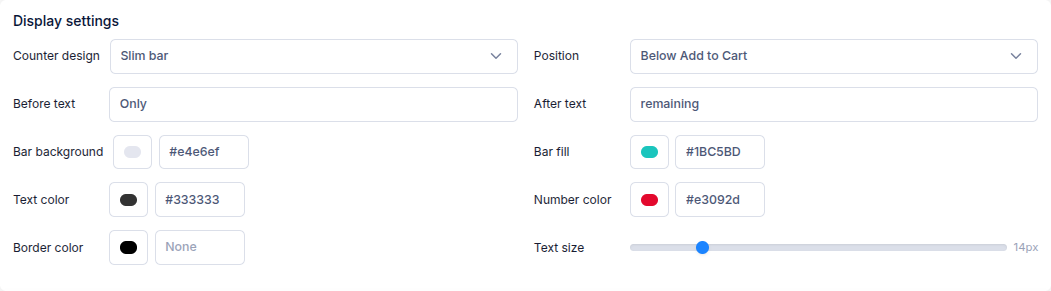
Under Display settings, choose a Counter design: Slim bar, Thick bar, Minimal bar or Text only. Choose whether the counter appears above or below the Add to Cart button.
Write the Before text and After text around the number, such as “Only” and “remaining”. Adjust the bar, text, number and border colours and the text size. The Preview shows how the counter will look as you make changes.
Schedule
Choose when a standalone counter goes live:
- Start immediately — show it when you create it.
- Schedule for later — set a Start at date and time at least one hour from now.
- Save as draft — save it without showing it yet.
Choose No automatic revert to leave the counter on until you turn it off, or Revert at a specific time to stop showing it at the time you set.
Targeting
Choose the Markets where the counter appears, then choose its products:
- All products — show it on every product.
- Smart — choose a product or variant filter and select Preview to check the matches.
- Manual — select products yourself.
- Upload product list — target products or variants from a file.
A variant filter or list includes the parent product of each matching variant. The counter appears on the selected product, not only on the matching variant.
A standalone counter needs both a schedule and targeting. Review the selected products before creating it.
Review and create
Check the storefront Preview and the Summary of your inventory source, display, schedule and targeting. Select Create inventory countdown to save it. You can then manage the counter from the Inventory countdown list.
Use a counter in a sales campaign
Create the counter's design first. You can save it as a draft if you do not want it to appear on its own. When you create a sales campaign, turn on Display widgets and select the inventory countdown. The campaign uses its design and controls when and where it appears on the campaign's products.
If you have questions, use the chat button in the corner or email help@ouiteo.com.