Create a sale badge to add a label to selected product images. You can show it on its own or use its design in a sales campaign.
In Sales Discount Manager, open Sales badges and select + Create Badge.
Name and badge image
Enter a name you will recognise in the badge list. The name is for your use in the app.
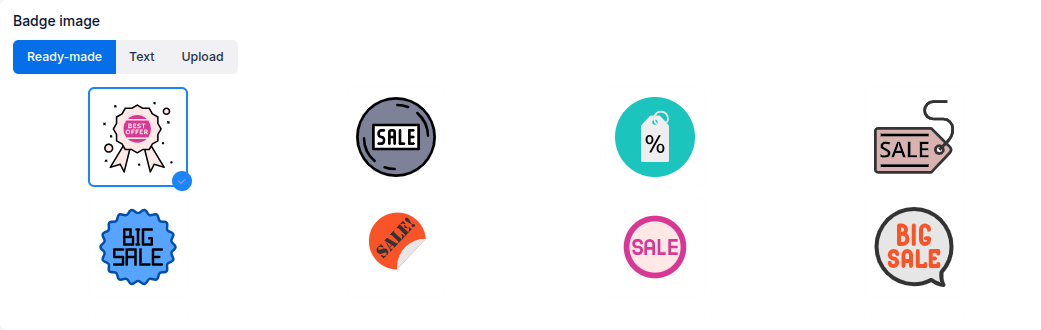
Under Badge image, choose one of three options:
- Ready-made — select a preset badge.
- Text — select a text preset, then edit its Label, Font size, Width and Height.
- Upload — use your own JPG or PNG image. You can keep up to five custom badges, each up to 2 MB.
Position and colours
Under Display settings, choose Top Left, Top Right, Bottom Left or Bottom Right to position the badge on the product image. Adjust Background, Foreground and Text color where those controls are available. Uploaded images keep their own colours.
Check the Preview to see the badge on a product image. Select Different product to check how it looks on another image.
Schedule
Choose when a standalone badge goes live:
- Start immediately — show it when you create it.
- Schedule for later — set a Start at date and time at least one hour from now.
- Save as draft — save the badge without showing it yet.
Choose No automatic revert to leave the badge on until you turn it off, or Revert at a specific time to stop showing it at the time you set.
Targeting
Choose the Markets where the badge appears, then choose its products:
- All products — show it on every product.
- Smart — choose a product or variant filter and select Preview to check the matches.
- Manual — select products yourself.
- Upload product list — target products or variants from a file.
A variant filter or list includes the parent product of each matching variant. The badge appears on the selected product, not only on the matching variant.
A standalone badge needs both a schedule and targeting. Review the selected products before creating it.
Review and create
Check the product Preview and the Summary of your badge, schedule and targeting. Select Create Badge to save it. You can then manage the badge from the Sales badges list.
Use a badge in a sales campaign
Create the badge's design first. You can save it as a draft if you do not want it to appear on its own. When you create a sales campaign, turn on Display widgets and select the badge. The campaign uses its design and controls when and where it appears on the campaign's products.
If you have questions, use the chat button in the corner or email help@ouiteo.com.