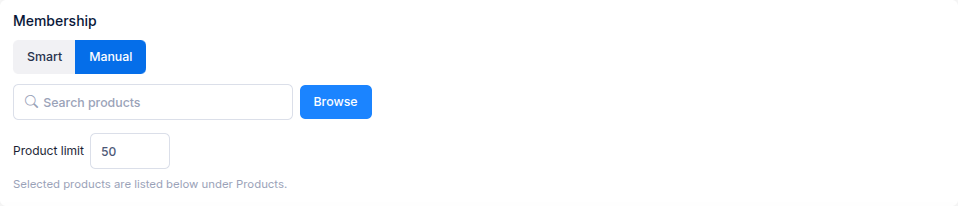
Membership decides which products belong to a collection. Choose Smart to use a saved product filter, or Manual to pick products yourself. You can change the membership method when editing the collection.
Smart membership
- Select Smart in Membership.
- Choose a product target filter, or select New filter to create one.
- Select Preview to check which products match.
- Set a Product limit if you want to cap the collection's size.
When the collection runs, Ouiteo updates its membership to match the filter, up to the product limit. If a product stops matching, it is removed from the collection on a later run. The collection's schedule determines when those updates happen; you can also run it manually.
Filters are shared across Ouiteo apps. See Create a filter for Live and Background filters and their conditions.
Manual membership
- Select Manual in Membership.
- Use Search products or Browse to choose products.
- Check the selected products under Products.
- Save or create the collection.
Manual membership keeps the selected set until you change it. A scheduled run does not add products simply because they match a filter.
Check before applying
On an existing collection, Current shows products already in it and Preview shows the proposed result. Check the preview before selecting Apply now. On a new collection, preview Smart membership after choosing a filter.