On this page
This page is where you set up a collection: its title and URL handle, how often it updates, and how its products are chosen.
To create a new collection, start from View collections; the same page opens so you can set it up.
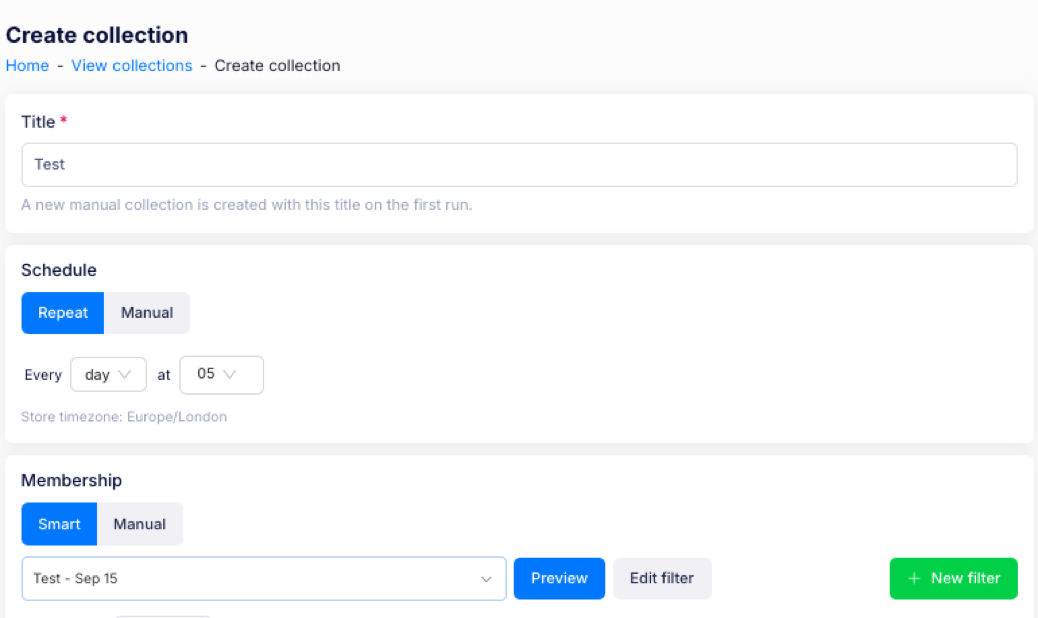
Title and URL handle
- Title — the collection's name. A collection needs a title before you can save it.
- URL handle — the web address the collection uses on your storefront. Select view in admin to open the collection in Shopify admin.
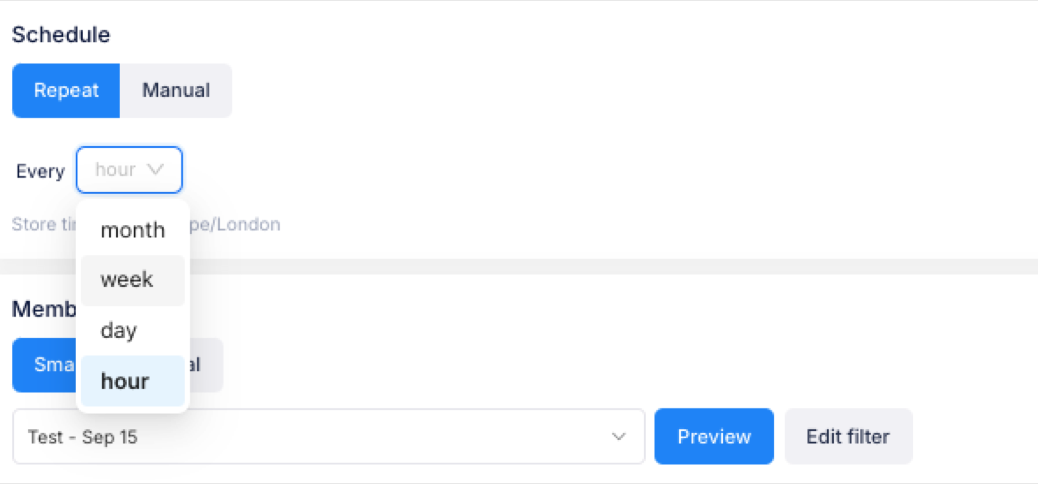
Schedule
Choose how the collection updates:
- Repeat — the collection updates automatically, every hour, day, week or month.
- Manual — the collection only updates when you run it yourself.
The schedule uses your store's timezone, shown below the options.
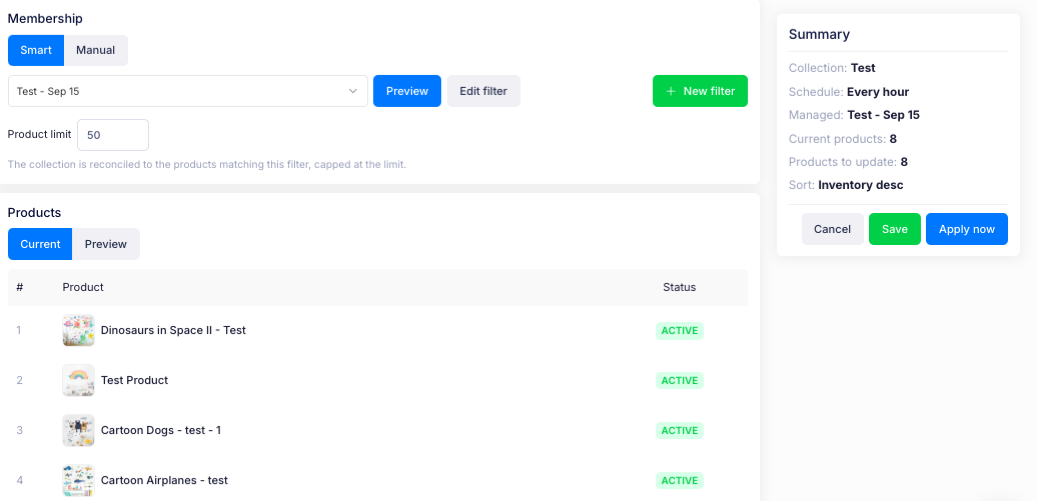
Membership
Membership decides which products belong to the collection.
- Smart — products are chosen by a filter, and the collection stays in step with it as your catalogue changes.
- Manual — you add and remove products yourself.
Smart with existing filter
- Choose a filter from the dropdown. The filter is the rule that decides which products qualify.
- Select Preview to see the products that match right now.
- Select Edit filter to change the filter, or New filter to build another one.
- Set a Product limit to cap the collection's size. The collection is kept to the products that match the filter, up to the limit.
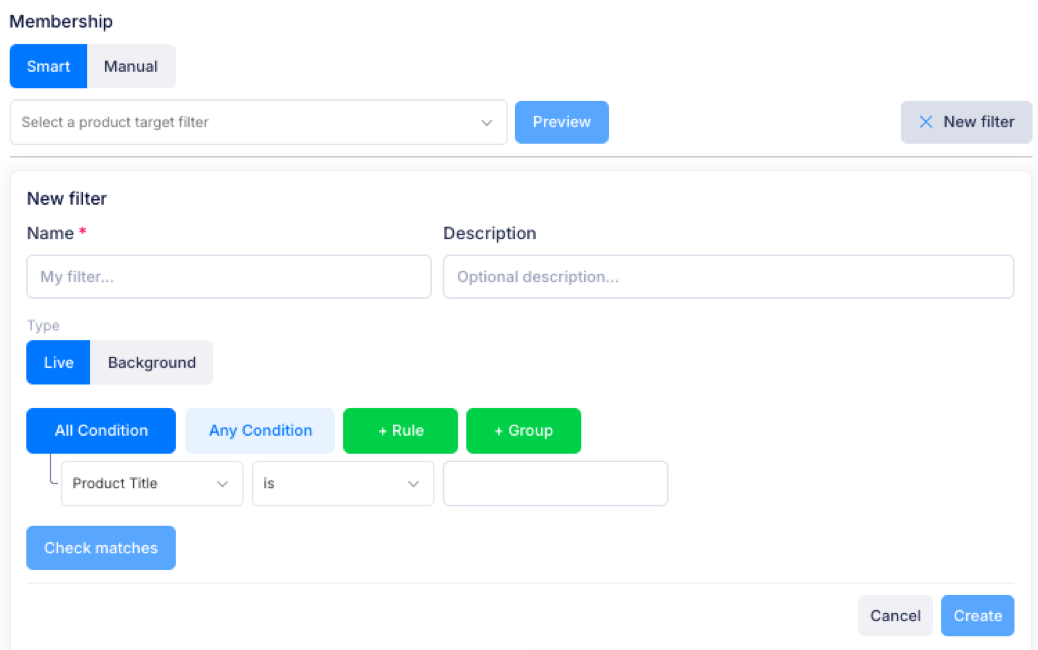
Smart with new filter
Select New filter to build one. Give it a Name and an optional Description, choose the Type (Live or Background), then add the conditions the products must match:
- + Rule adds a single condition, for example Product title is a value you enter.
- + Group adds a group of conditions.
- Switch between All Condition (every condition must match) and Any Condition (any one of them can match).
Select Check matches to see which products the filter finds, then Create to save it. The new filter then appears in the filter dropdown.
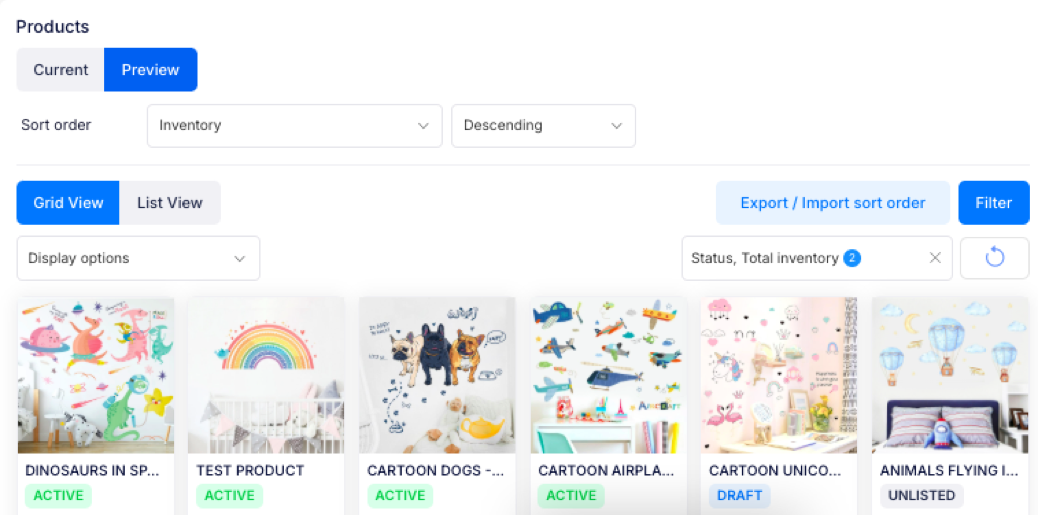
Products
- Current — the products in the collection now.
- Preview — the products that match the filter, before you apply your changes.
The controls above the list change how the products are shown:
- Sort order — choose what to sort by and whether the order is ascending or descending.
- Grid View / List View — show the products as images or as a table.
- Filter — narrow the list, for example by status or total inventory. Applied filters appear as chips you can remove.
- Display options — choose what the grid shows.
- Export / Import sort order — save the current order, or load one.
Summary
The summary panel shows the collection's current state:
- Collection — the collection's name.
- Schedule — how often it updates.
- Managed — the filter the collection is managed by.
- Current products — how many products the collection holds now.
- Products to update — run a preview to see the products waiting to be added or removed.
- Sort — how products are ordered within the collection.
Refresh products checks for products that have changed since the last update. The time of the last update is shown above the button.
Save or apply
- Save — save your changes. The collection updates on its schedule.
- Apply now — save and update the collection immediately.
- Cancel — leave without saving.
If you have additional questions, contact us using the chat button in the corner or email us at help@ouiteo.com.