On this page
The View collections page lists the collections Ouiteo manages for your store, so you can find one quickly, check its status and when it last updated, and open, copy, run or remove it.
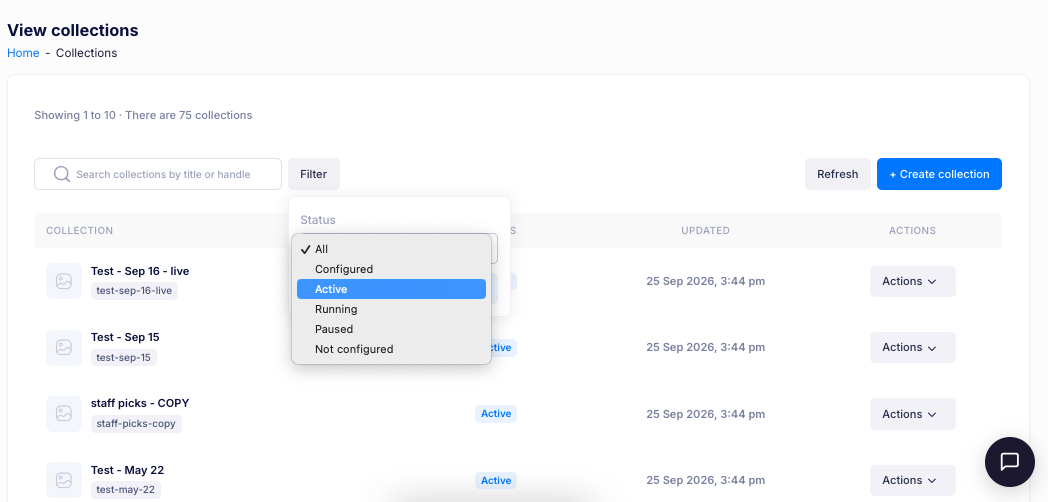
Above the list, the page shows how many collections you are viewing, for example Showing 1 to 10 · There are 75 collections.
Each row shows:
- the collection's image, title and URL handle;
- its status;
- when it last updated;
- Actions, for what you can do with that collection.
Find and filter collections
- Use the search box to find a collection by its title or handle.
- Select Filter to narrow the list by status: All, Configured, Active, Running, Paused or Not configured.
- Select Refresh to reload the list and see the latest collections from your store.
When there are more collections than fit on one page, use the controls at the bottom to move through them:
- Show — choose how many collections to list per page.
- The entry count, for example Showing 1 to 10 of 75 entries.
- First, Previous, the page numbers, Next and Last — move to another page.
Create a collection
Select Create collection to set up a new one. See Create Collection.
Edit a collection
Open a collection from View collections to change its settings and its products.
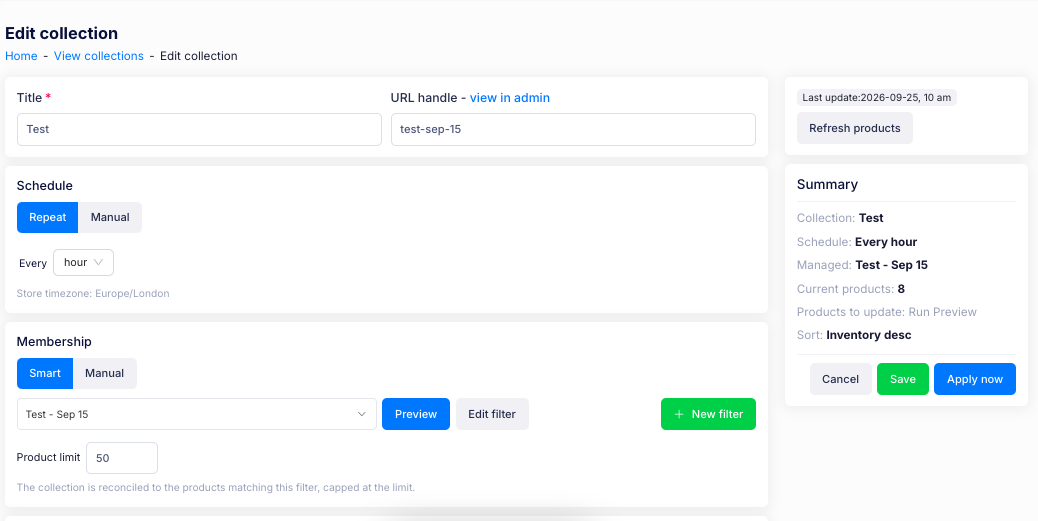
- Title — the collection's name. A collection needs a title before you can save it.
- URL handle — the address the collection uses on your storefront. Select view in admin to open the collection in Shopify admin.
- Schedule — choose Repeat to update the collection automatically, for example every hour, or Manual to update it only when you run it. The schedule uses your store's timezone.
- Membership — choose Smart to let a filter decide which products belong, or Manual to add and remove products yourself.
Select Save to keep your changes, Apply now to save and update the collection immediately, or Cancel to leave without saving.
Actions
Select Actions on a collection to:
- Edit — open the collection to change its settings and its products.
- Duplicate — make a copy, keeping its settings and sort order, so you can set up a similar collection quickly.
- Run now — update the collection immediately instead of waiting for its schedule.
- Pause — stop the collection updating on its schedule.
- Delete — remove the collection. Your products are never deleted.
If you have additional questions, contact us using the chat button in the corner or email us at help@ouiteo.com.