On this page
- Name
- Inventory source
- Display settings
- Schedule
- Targeting
- Preview
- Summary
- Inventory countdown list
- Inventory countdown actions
- FAQ
An inventory countdown shows a live stock message on your product pages, such as "Only 10 remaining", so shoppers know stock is limited. This page sets up one counter: where it reads stock from, how it looks, which products show it, and when.
Name
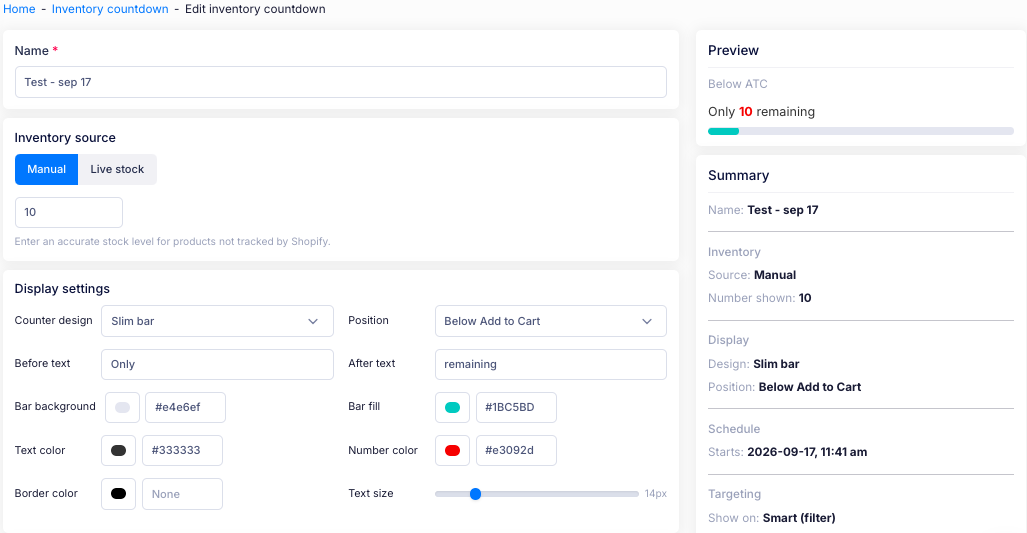
Give the counter a name so you can find it again later, for example Low stock urgency.
Inventory source
Choose where the counter reads stock from:
- Manual — enter a stock level yourself, for products whose stock Shopify does not track. The helper text reads Enter an accurate stock level for products not tracked by Shopify.
- Live stock — read the live stock level from Shopify.
Display settings
Set how the counter looks:
- Counter design — the style, for example Slim bar.
- Position — where it sits on the product page, for example Below Add to Cart.
- Before text and After text — the words around the number, for example Only and remaining.
- Bar background and Bar fill — the colours of the bar.
- Text color and Number color — the colours of the text and the number.
- Border color — the counter's border, or None.
- Text size — the size of the text, for example 14px.
Schedule
Turn on Schedule to control when the counter shows, then choose when it starts:
- Start immediately — show the counter now.
- Schedule for later — set Start at to the date and time the counter begins.
- Save as draft — set the counter up without starting it.
Then choose what happens at the end:
- No automatic revert — the counter stays until you turn it off.
- Revert at a specific time — the counter stops at the time you set.
Targeting
Choose which products show the counter. It is set with the schedule above — a standalone counter needs both.
- Markets — set which markets the counter shows in.
- Choose where it shows:
- All products — every product.
- Smart — choose a filter, then select Preview to see the matched products. Use Edit filter to change it, or + New filter to build a new one.
- Manual — choose the products yourself.
- Upload product list — upload a list of products to target.
For more details on targeting types, see Targeting in the Sales Campaign guide.
Preview
The preview shows the counter as shoppers will see it, using your wording, colours and position.
Summary
The summary panel shows the counter as you set it up: its Name, the Inventory source and number shown, the Display design and position, the Schedule, and the Targeting. Anything still to set is highlighted.
Inventory countdown list
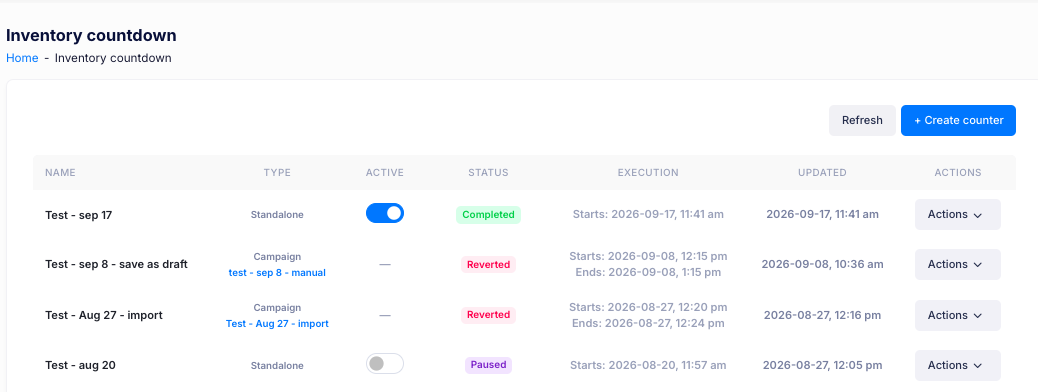
Once you have created counters, the Inventory countdown page lists them. Each row shows:
- Name — the counter's name.
- Type — Standalone, or Campaign with the campaign it is linked to.
- Active — the switch that turns the counter on or off.
- Status — where the counter has got to, such as Completed, Reverted or Paused.
- Execution — when it runs, with a start time and, for a campaign counter, an end time.
- Updated — when it last changed.
Select Refresh to load the latest list.
Inventory countdown actions
Select Actions on a row to:
- Edit — change the counter's settings.
- Duplicate — make a copy of it.
- Delete — remove it.
Select + Create counter to add a new counter.
FAQ
Can I show it on only some products? Yes. You can apply it to all products or limit it to specific products.
Can I hide the exact number? Yes. You can choose to show a general low-stock message instead of the precise count remaining.
What happens when a product sells out? You decide: either hide the message entirely, or show an out-of-stock note.
Can I use different messages for low stock and urgent stock? Yes. You set separate thresholds, wording, and colours for each level.
If you have additional questions, contact us using the chat button in the corner or email us at help@ouiteo.com.