
If you sell in more than one country, your collections probably show every shopper the same product order. What sells in the UK isn't always what sells in the US or Japan, though: seasons, sizes, prices and tastes differ. This post explains why one global order holds international stores back, and how to give each Shopify Market its own collection order without separate collections or new URLs.
On this page
1. Why one collection order doesn't fit every market
Shoppers decide quickly. Most of them look at the first rows of a collection and either click or leave, so the products at the top do most of the selling.
Ordering those top rows for everyone at once is a compromise. Some common examples:
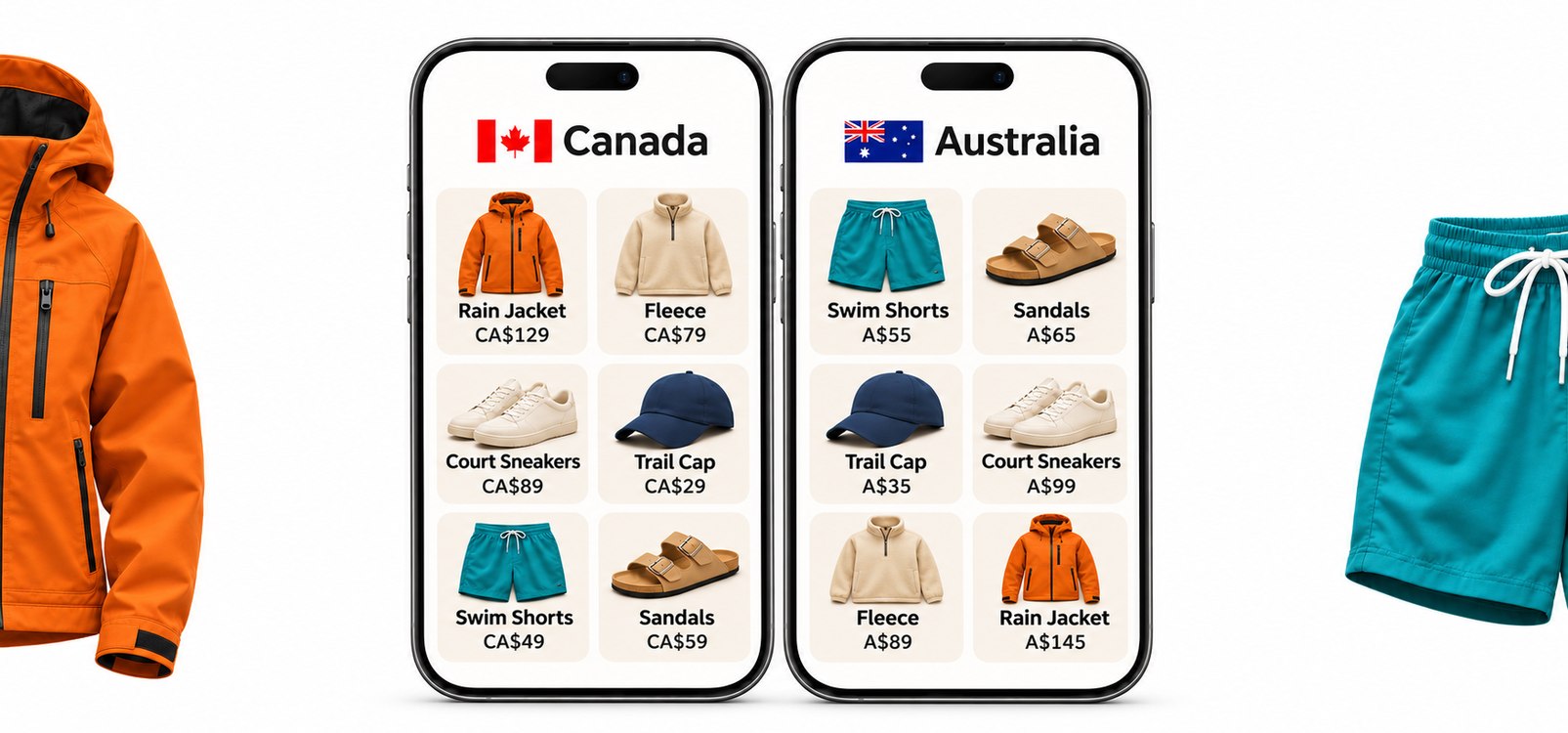
- Seasons: in November, shoppers in Australia want summer, while shoppers in Canada want coats.
- Local best sellers: a product that sells well in one country can be slow in another.
- Stock: a product that's out of stock in one region's warehouse is a dead click for that region's shoppers.
- Price and range: a hero product can be priced very differently, or not sold at all, in some markets.
Sorting by global best sellers means your biggest market sets the order for every other one. Smaller markets get a collection built for someone else.
2. What Shopify does and doesn't do on its own
Shopify Markets lets you sell in several countries from one store, with local currencies, languages, domains and pricing. A collection still has a single product order, though. Whatever order you set applies to every market.
The usual workarounds are duplicate collections per country, with their own URLs and menus, or separate stores. Both multiply your merchandising work, and duplicate collections split your links and search rankings across several pages.
3. How per-market collection sorting works
With per-market sorting, each market gets its own version of the collection:
- You choose a collection and the markets that need their own order.
- Each market version has the same products as the original, kept in step automatically.
- You sort each market version on its own: with a saved strategy, sort rules, pinned products or segments.
- On the storefront, a shopper in Japan sees the Japan order and a shopper in the US sees the US order, on the same collection URL.
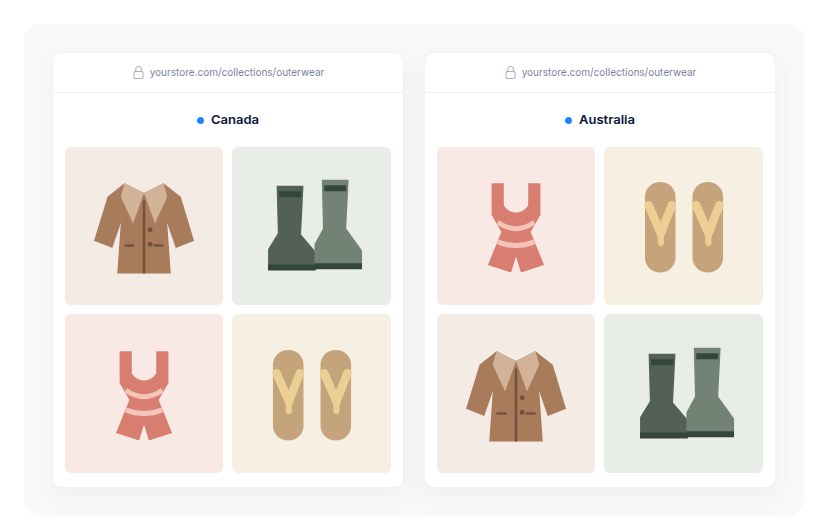
Because the URL doesn't change, your menus, links and search rankings keep pointing to one collection page. Your theme's own grid, filters and paging stay as they are.
4. What to put first in each market
Start with the markets that bring in the most revenue after your primary market, and with the collections that get the most traffic. For each market, decide what should lead:
- Local best sellers: rank by sales, so each market leads with what its shoppers already buy.
- Seasonal products: pin or push up the products that suit that market's season right now.
- In-stock products first: push sold-out products down so shoppers don't land on dead clicks.
- New arrivals: lead with new products in markets where you're launching a range.
- Margin: in markets with higher shipping costs, lead with products that still make money after delivery.
You don't need a different strategy for every market. Often two or three strategies cover all your markets, and a saved strategy can be assigned to several market versions at once.
5. Works with your theme and filter apps
Per-market sorting shouldn't mean rebuilding your storefront. With Ouiteo, the market order appears inside the collection page you already have:
- Your theme stays as it is. Your theme's own product grid, filters and paging keep working. There's no new template or theme code to maintain.
- Popular search and filter apps work too. If a search and filter app draws your collection pages, shoppers still see their market's order in it. Check the help guide for the apps supported today.
- If anything goes wrong, nothing breaks. When a market order can't be shown, shoppers see the original collection's order.
Per-market sorting is part of Collection Sort & Manage, working with Ultimate Collection Manager. Every market version gets the full sorting toolkit: 50+ sort types, strategies, segments, pins and sold-out push-down.
6. Getting started
- Set up your markets in Shopify under Settings → Markets.
- In Ouiteo, open Merchandising → Collections and select Markets.
- Add your top collections and choose the markets that need their own order.
- Assign a strategy to each market version, or edit its sort settings directly.
- Turn on the Market-specific sorting app embed in your theme.
The full steps, limits and troubleshooting are in the Market-specific collections guide.
Final thoughts
International shoppers notice when a store feels local, and the first row of a collection is where they notice it most. Giving each market its own collection order is one of the simplest ways to make that happen, and you can do it without duplicate collections, new URLs or a second store. Start with one busy collection in your second-biggest market, compare how it performs, and expand from there.

Collection Sort & Manage
Give each Shopify Market its own collection order, with 50+ sort types, strategies and pins.

Ultimate Collection Manager
Keeps every market version's products in step with the original collection.