On this page
Use Filters to define a reusable set of products that match the conditions you choose. You can preview the matching products before you save.
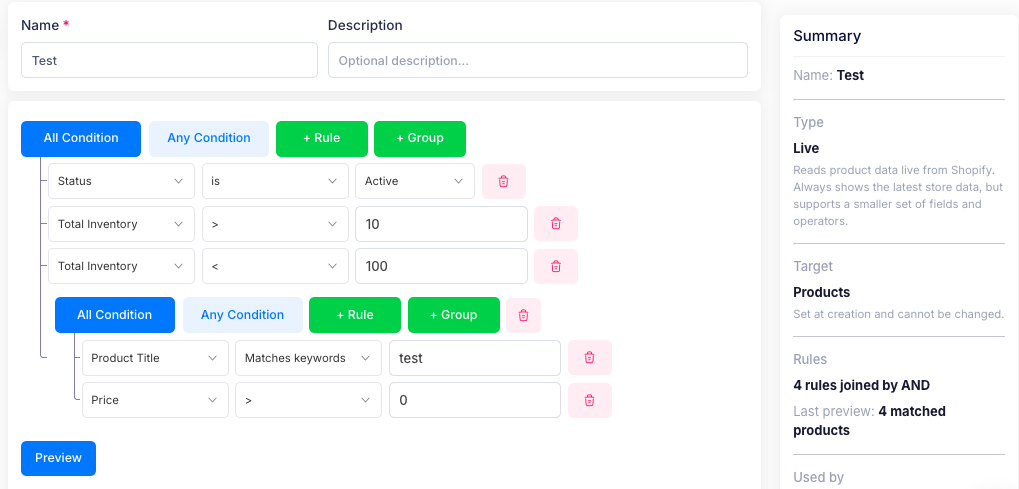
Name and description
- Name — a clear title for the filter. A filter needs a name before you can save it.
- Description — optional notes about what the filter is for.
Type
Choose how the filter reads your product data:
- Live — reads product data live from Shopify. Always shows the latest store data, but supports a smaller set of fields and operators.
- Background — runs against synced data. Supports the full rule set, but reflects the last sync.
The type can't be changed once the filter is created.
Target
- Products — matches and returns products.
- Variants — matches and returns product variants.
The target can't be changed once the filter is created.
Conditions
Add the rules that products must meet. Each rule is a field, an operator and a value.
- All Condition — a product must match every rule (AND).
- Any Condition — a product can match any rule (OR).
- Select + Rule to add a rule.
- Select + Group to add a group with its own All Condition / Any Condition setting, so you can combine AND and OR logic in one filter.
- Select the bin icon on a rule to remove it.
Preview the matches
Select Preview to load the products that match your conditions. Until you do, the page shows No preview loaded, with a prompt to add rules and select Preview.
The results table shows each product's Product name, Status, Total inventory, the Filter fields that matched, and an Action.
Summary
The summary panel shows the filter as you build it:
- Name — the filter's title, or Not set.
- Type — Live or Background.
- Target — Products or Variants.
- Rules — how many rules there are and how they are joined, for example 4 rules joined by AND.
- Last preview — how many products matched the last preview.
Select Save when you're done, or Cancel to leave without saving.
Live or Background filter?
Here's the difference between background filters and live filters, and when to use each.
Live filter
- Real-time accuracy is critical — you need to know exactly what is in stock right now, or the exact current price.
- You're filtering by IDs — when using Collection ID or Product ID, it's better to use a live filter. Because IDs are unique, you get the exact, up-to-date record with no sync delay.
- Your query is simple — you only need to filter by basic properties such as title, status, vendor or tags.
Background filter
- You need complex logic — you want to combine rules, for example "Products in Collection X and with a profit margin above Y".
- You need historical or aggregated data — you want to filter by how many units were sold last month, Google Analytics conversion rates, or total revenue.
- You need advanced variant metrics — you need to filter by Unit Cost or True Profit.
- A slight delay is acceptable — you're running bulk operations, generating reports, or setting up automated workflows where a few minutes of sync delay won't affect the outcome.
If you have additional questions, contact us using the chat button in the corner or email us at help@ouiteo.com.